Self-hosted · No account · Free and open source
One remote for your whole home
Control your TVs, air conditioners, lights, heating, Echo and Ring devices room by room, and play the films, shows and music on your PC or NAS on any TV, from any phone, tablet or computer on your home network.
git clone https://github.com/adrianeyre/media-centre.git
cd media-centre && pnpm install
pnpm start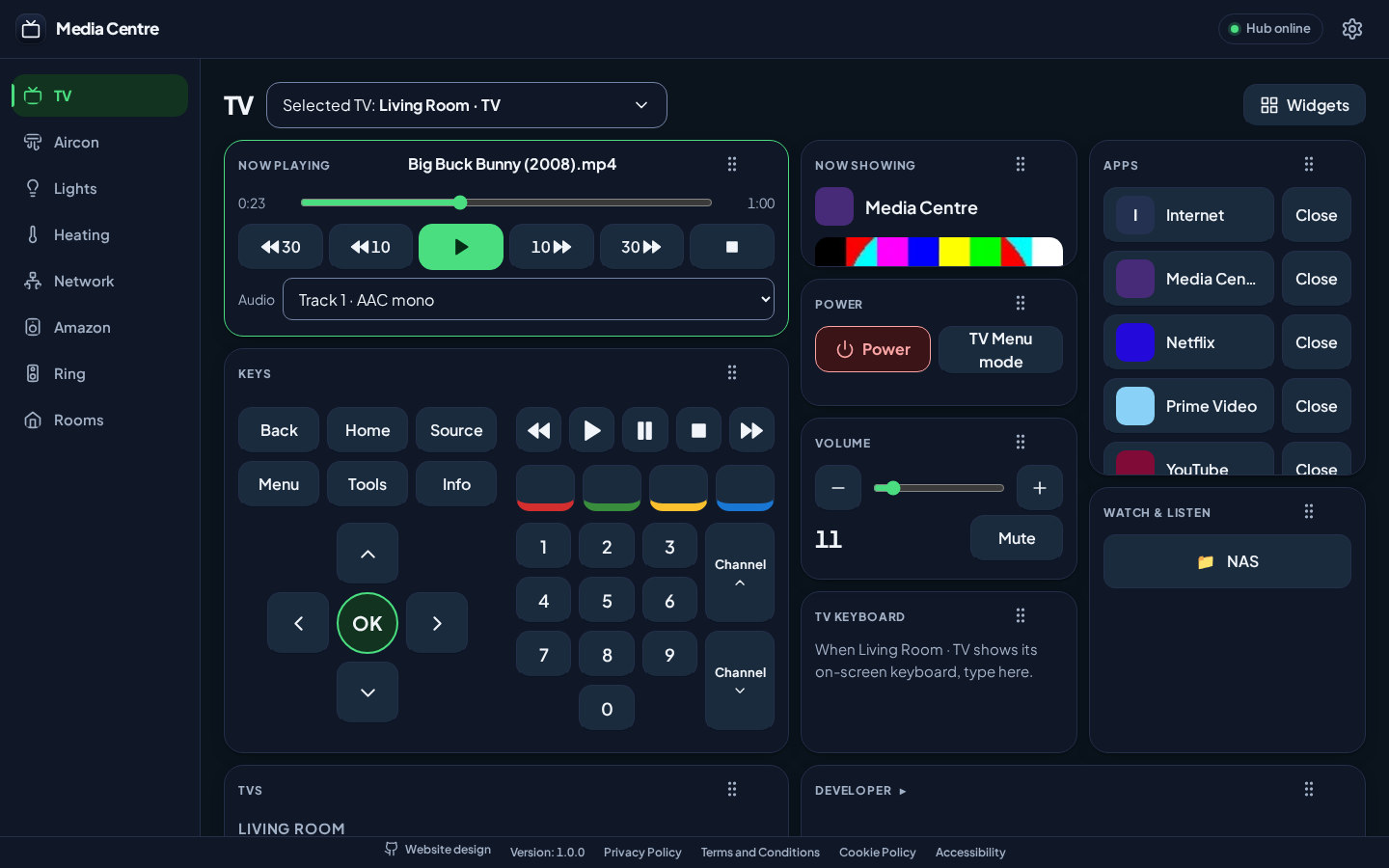
- Your own Hub in Docker on a NAS or mini PC, or on a PC
- No account and nothing to sign up for
- Local first: TVs, air conditioners and lights over your home network
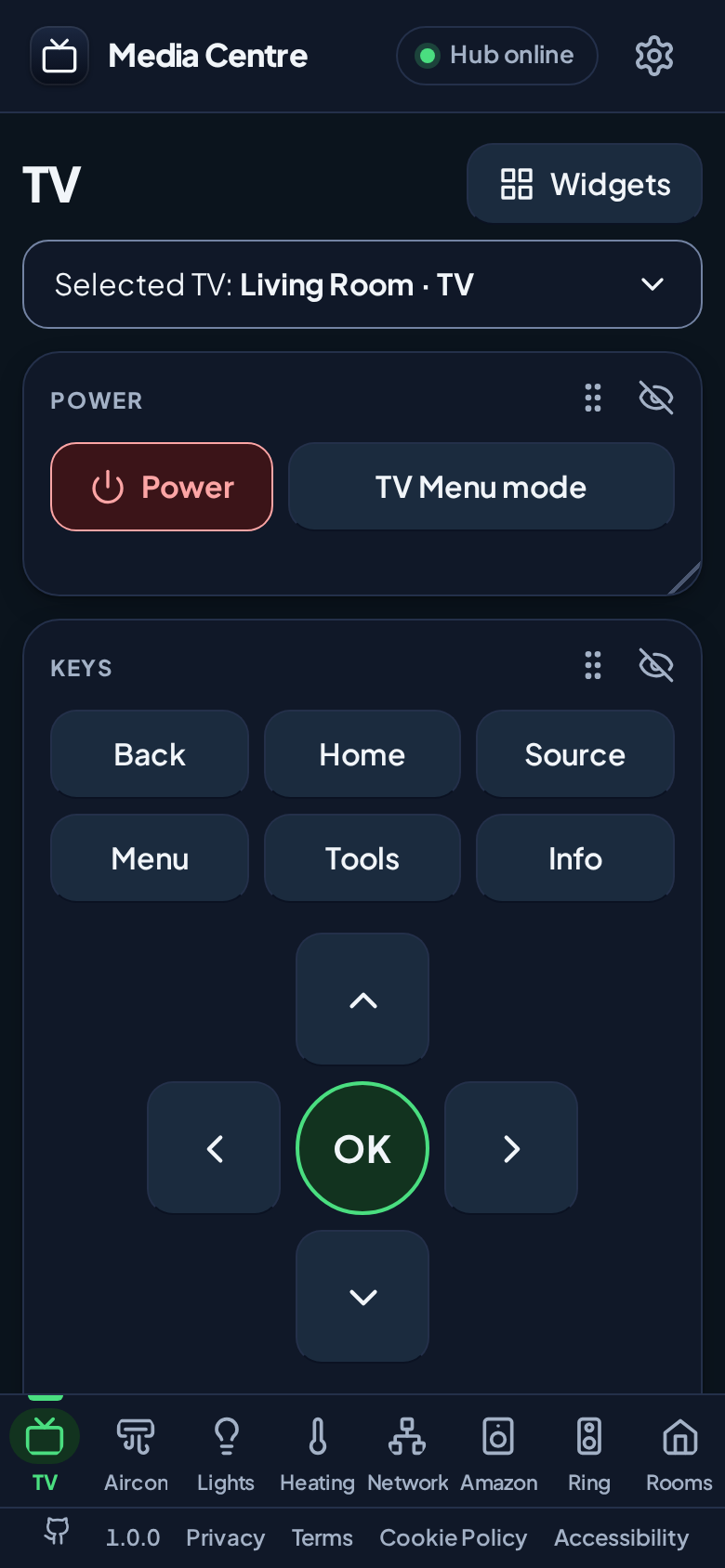
- WCAG 2.2 AA, light and dark, installable
Works with
- Samsung TVs
- Midea air conditioners
- Lepro lights
- Hive heating
- Amazon Echo
- Ring
- Your PC or NAS
Why Media Centre
What Media Centre is
Every Appliance in the home has its own remote or its own maker's app, each with its own account, and nothing shows the whole home in one place.
Media Centre puts them in one app you run yourself, grouped by the Rooms of your home: a tab each for the TVs, air conditioners, lights, heating, the network, Amazon Echos and Ring devices, and the Rooms on your own floor plan. Watching a film from the NAS no longer means the TV's own media browser and its physical remote: choose it on your phone, and the Hub wakes the TV, opens its Player and converts only what the TV can't play.
Anyone on your home network can pick it up, as anyone in the room can pick up a remote. It isn't reachable from outside your home.
-
The Hub
The always-on process, in Docker on a NAS or on a PC, that serves the Remote, controls every Appliance and serves your Media Files.
-
The Remote
The web app you use from any phone, tablet or computer on the home network.
-
The Player
The app the Hub installs on each Samsung TV to play your films, shows and music.
-
Rooms
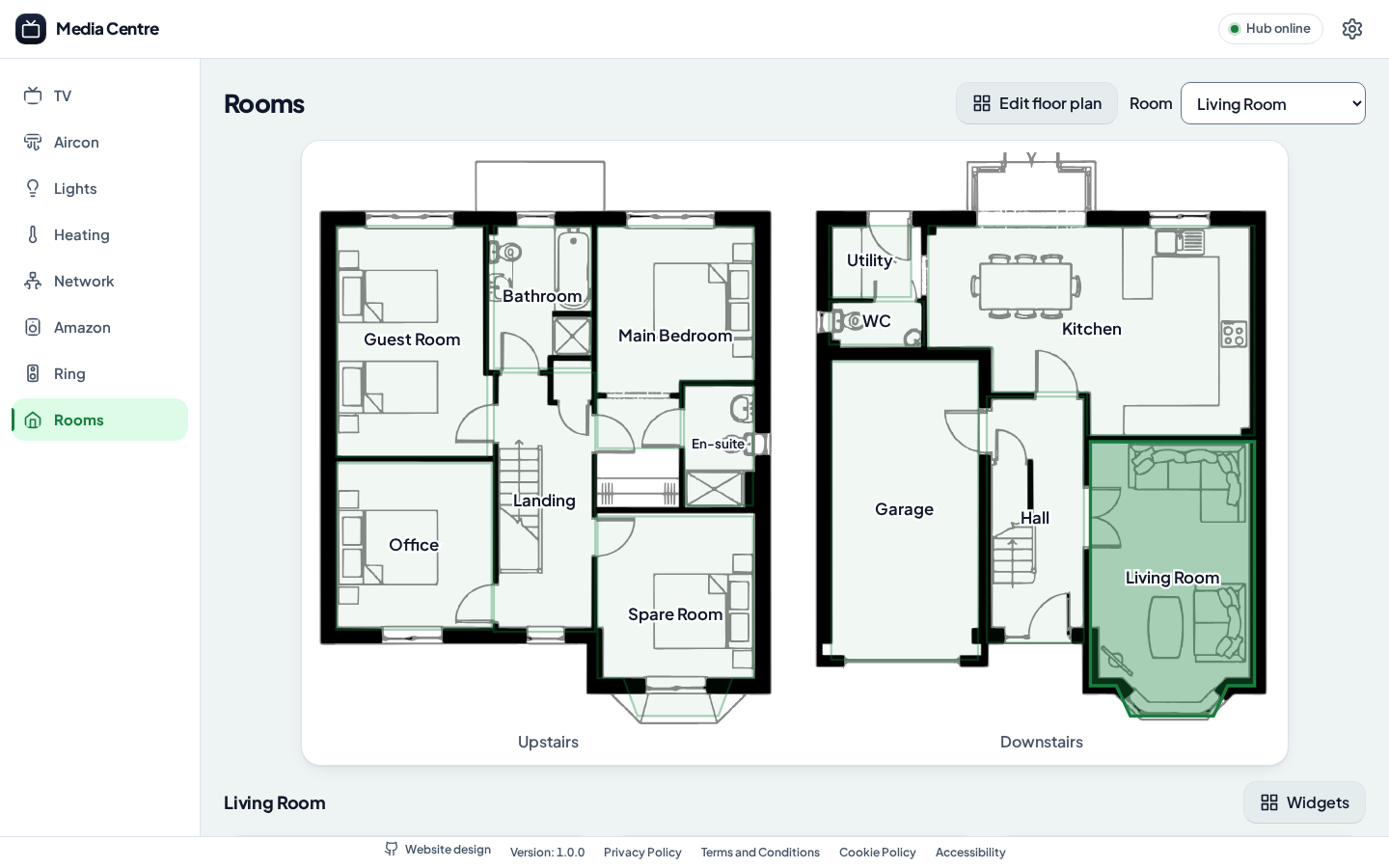
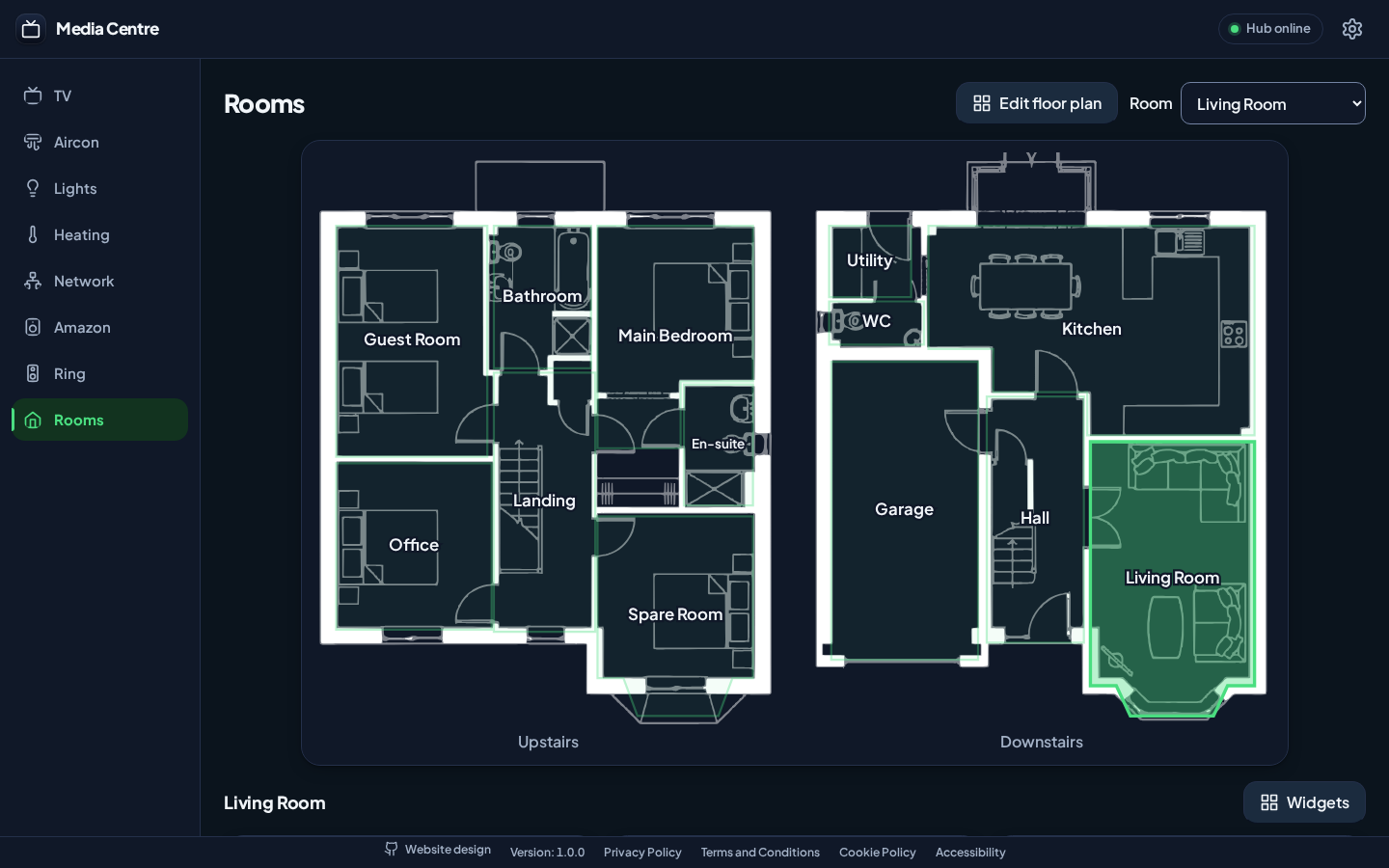
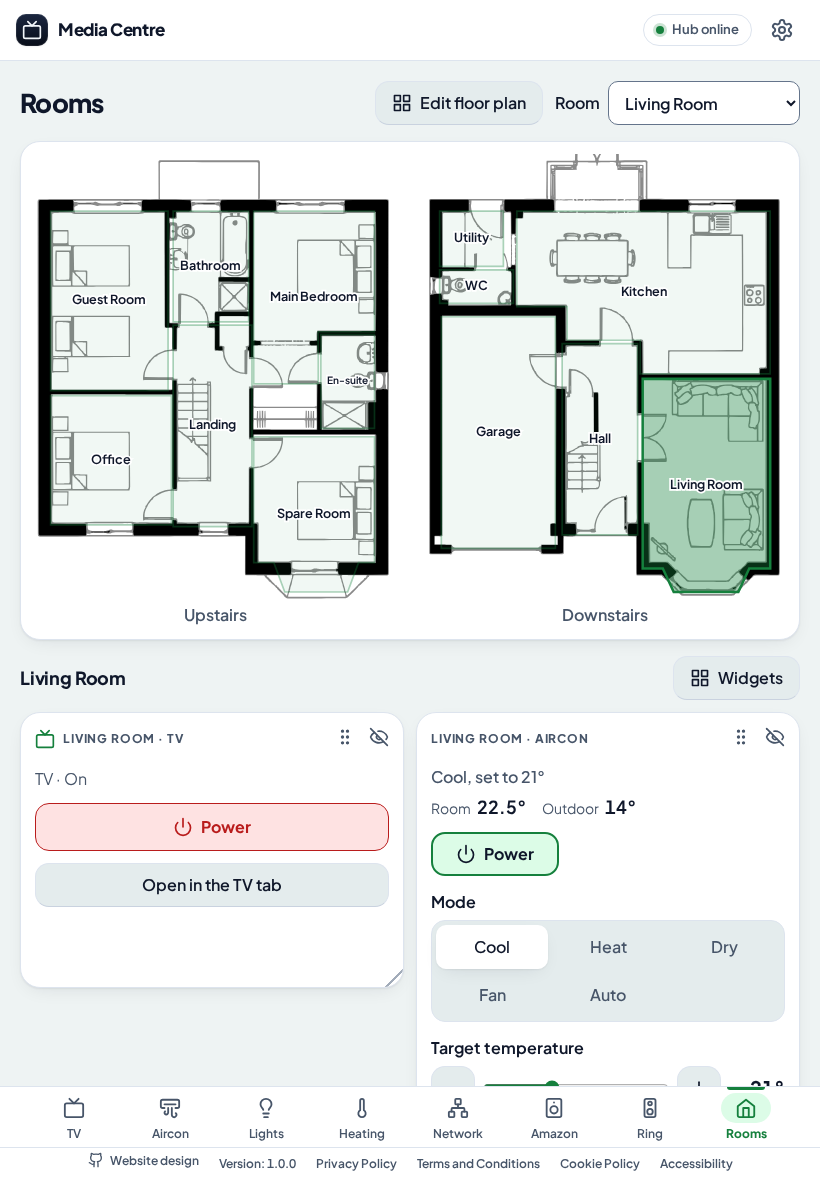
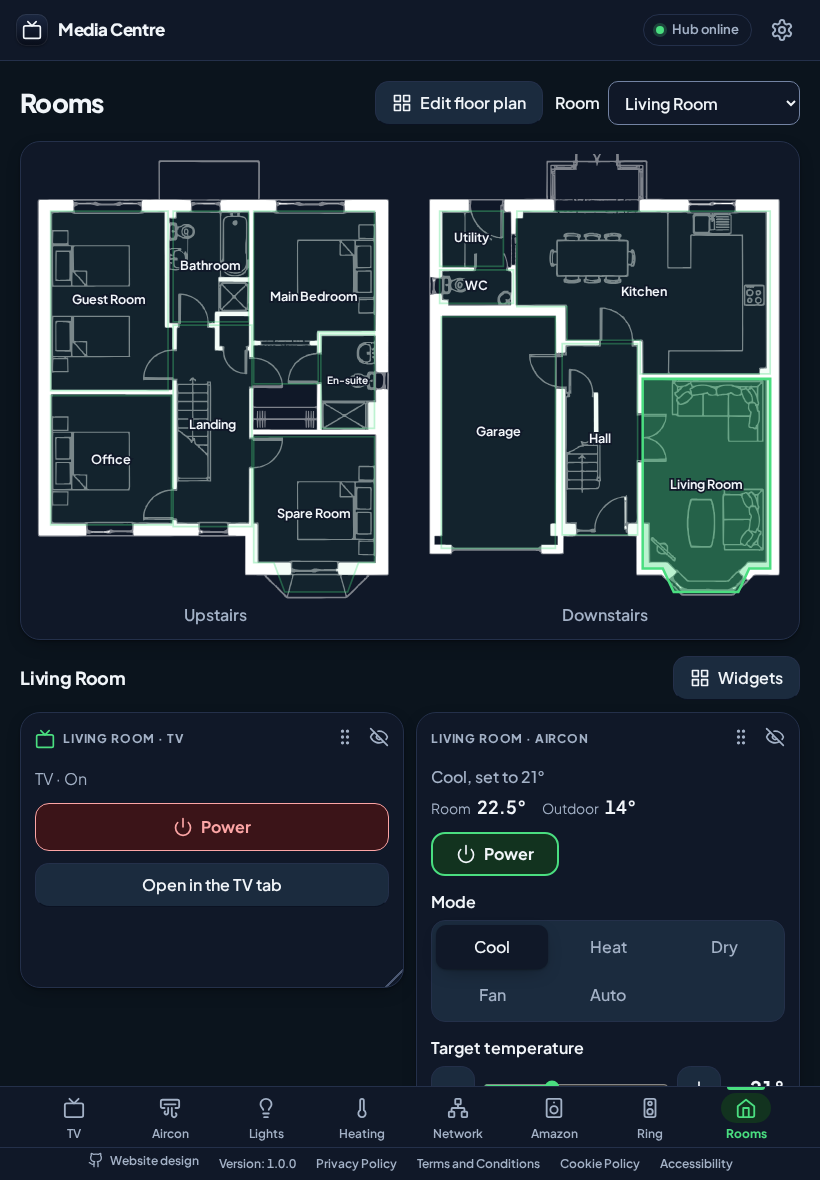
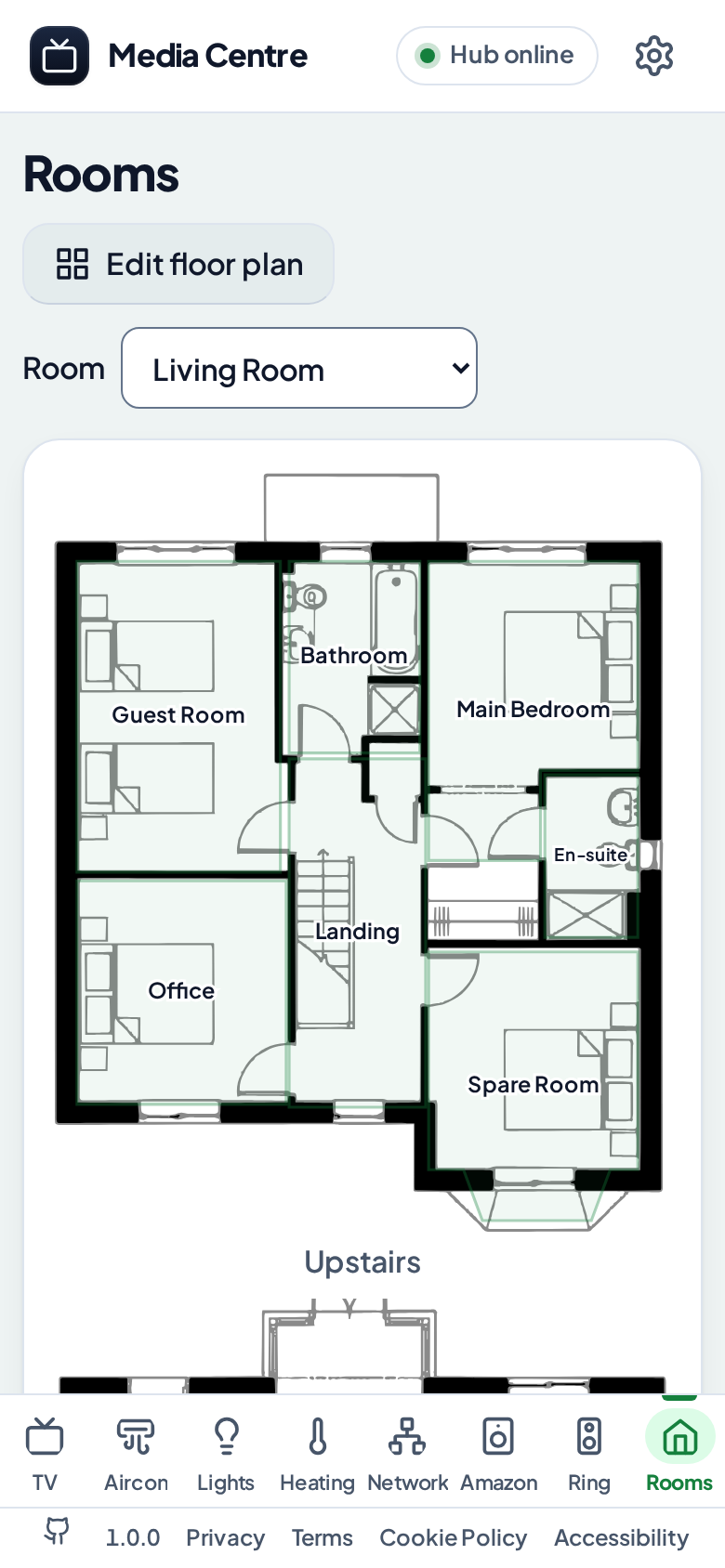
Every Appliance and device in its Room, on a floor plan drawn on your own image.
How a film reaches the TV
-
You choose it
In Watch & Listen, from a Media Source: a folder on the Hub's machine, or on a PC or NAS.
-
The Hub wakes the TV
With Wake-on-LAN if it is off, and waits for it to come on.
-
It opens the Player
The Player connects back to the Hub, which sends it the Media File.
-
It picks a Route
It reads the file with ffprobe and takes the cheapest way that the TV can play, converting with ffmpeg only what it can't.
-
Every Remote follows it
Now Showing shows the position, the audio and subtitle tracks and a frame from the film, and the Hub remembers where you stopped.
The four Routes, cheapest first
- Direct Play
- Remux
- Audio Conversion
- Full Conversion
Features
Everything in the home, in one Remote
A tab for each kind of Appliance, every one a board of widgets you can move, resize or hide, on each phone, tablet and computer.
-
Rooms on your own floor plan.
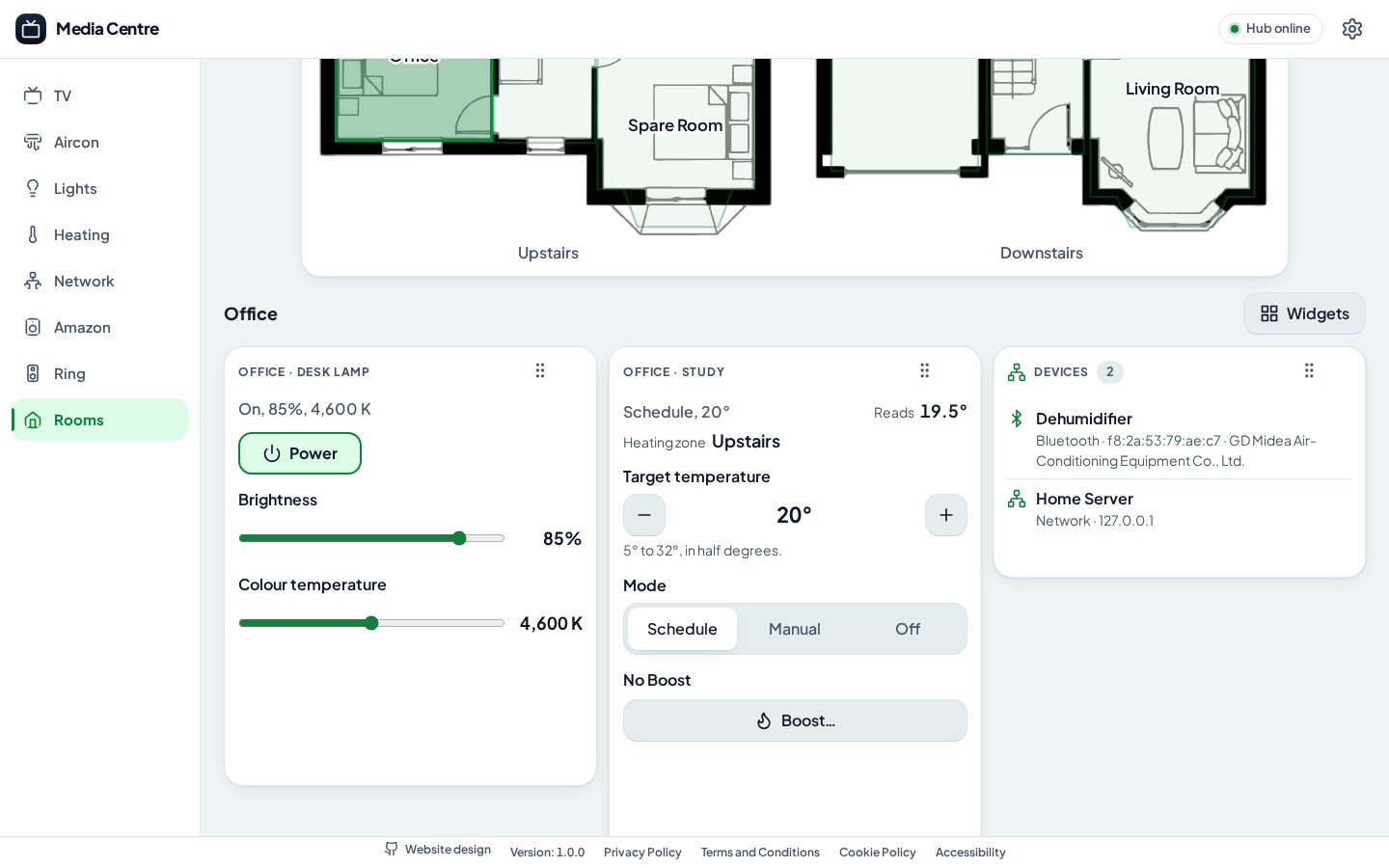
Tap a Room for everything in it: its TVs, air conditioners, lights and heating, its Echos and Ring devices. Draw the plan, floor by floor, on your own image of your home.
-
WCAG 2.2 at Level
AA
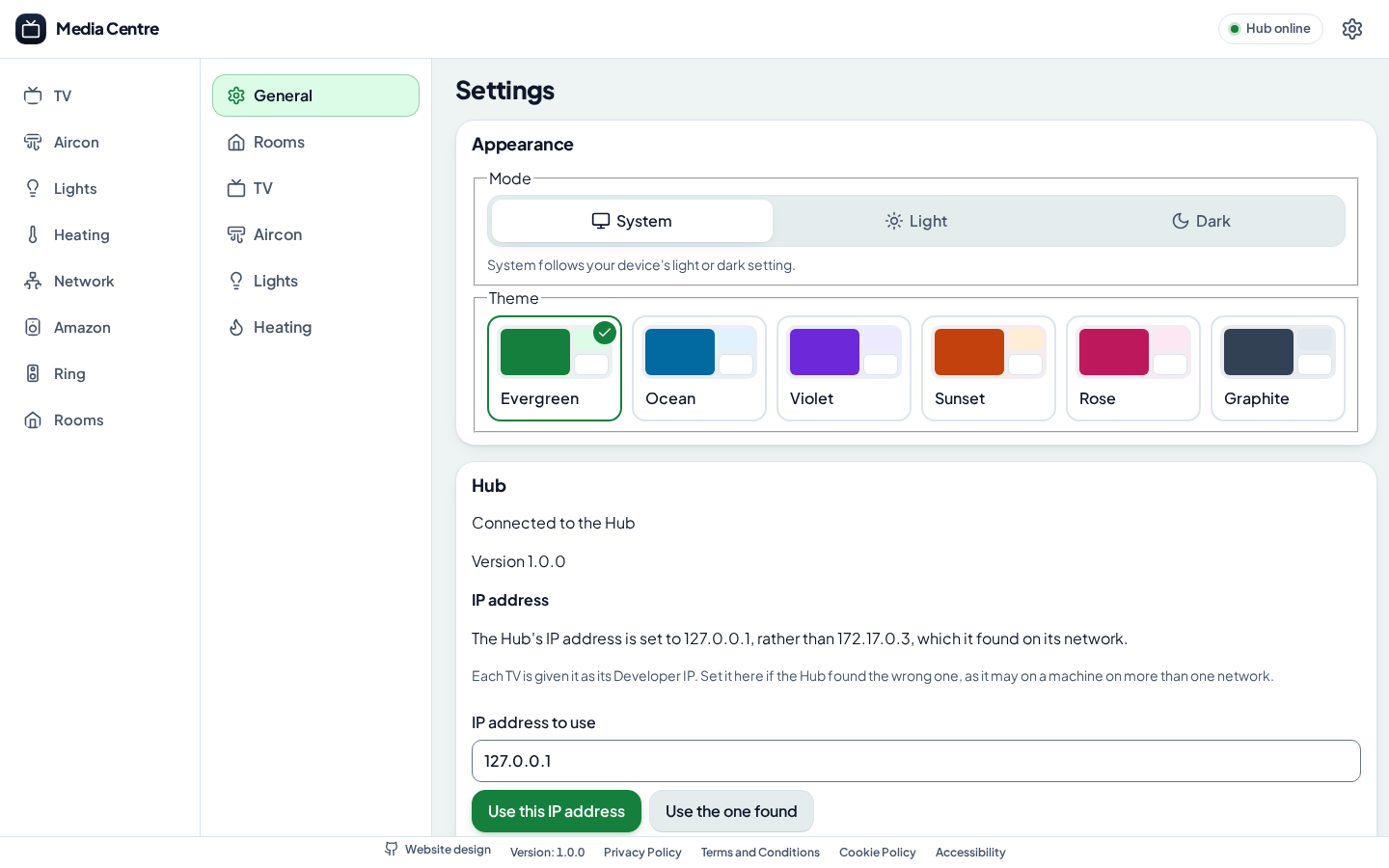
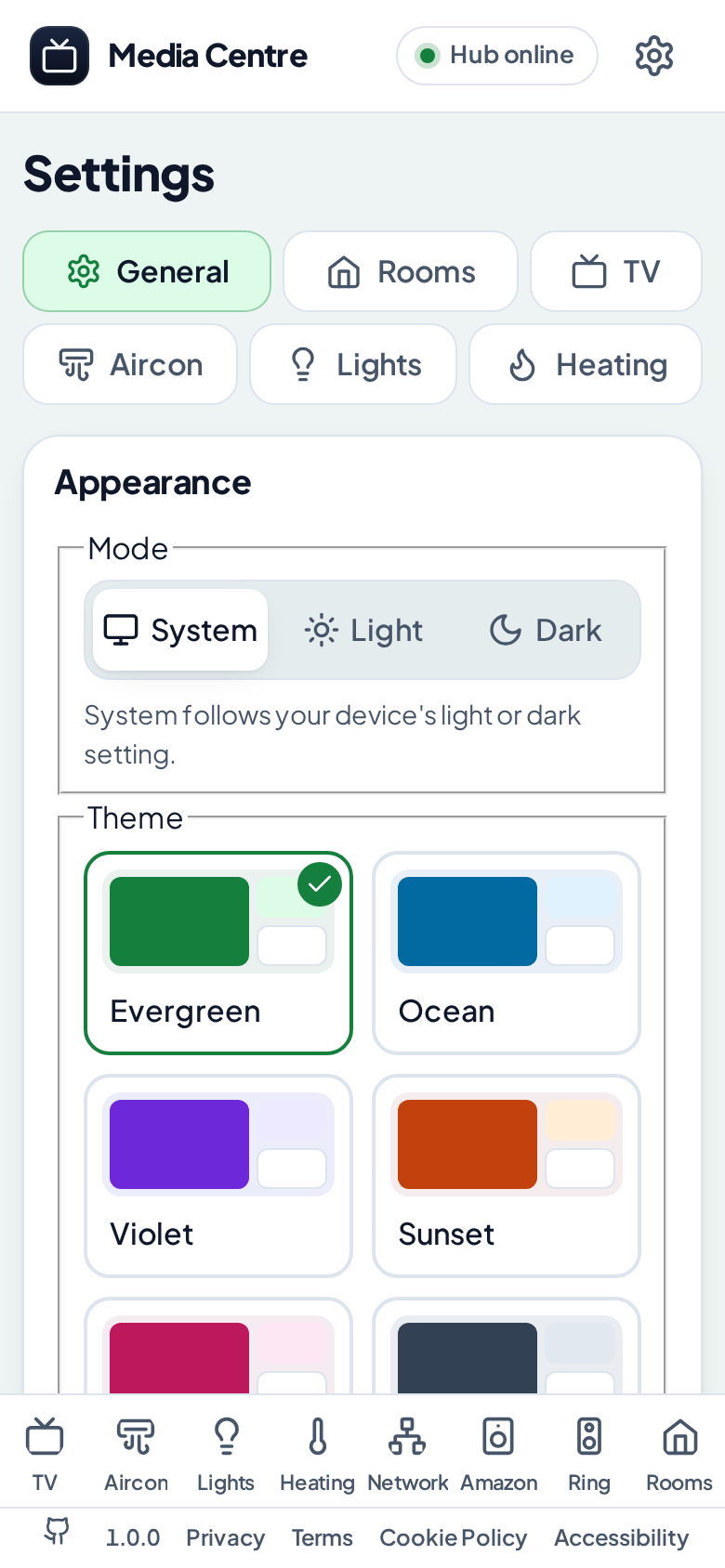
By keyboard and screen reader, in your device's light or dark, with six colour themes, and it installs to a phone's home screen.
-
Midea air conditioners.
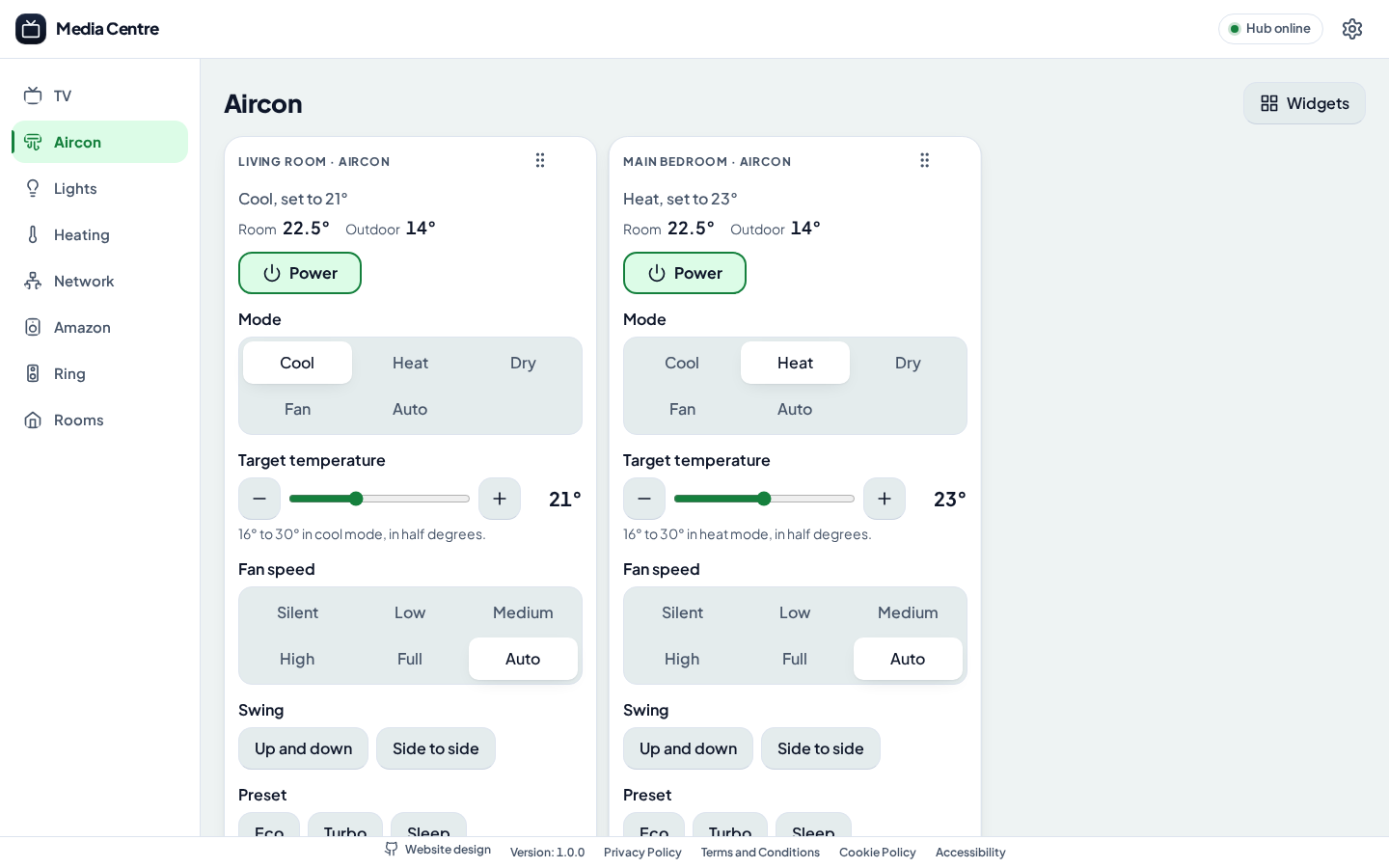
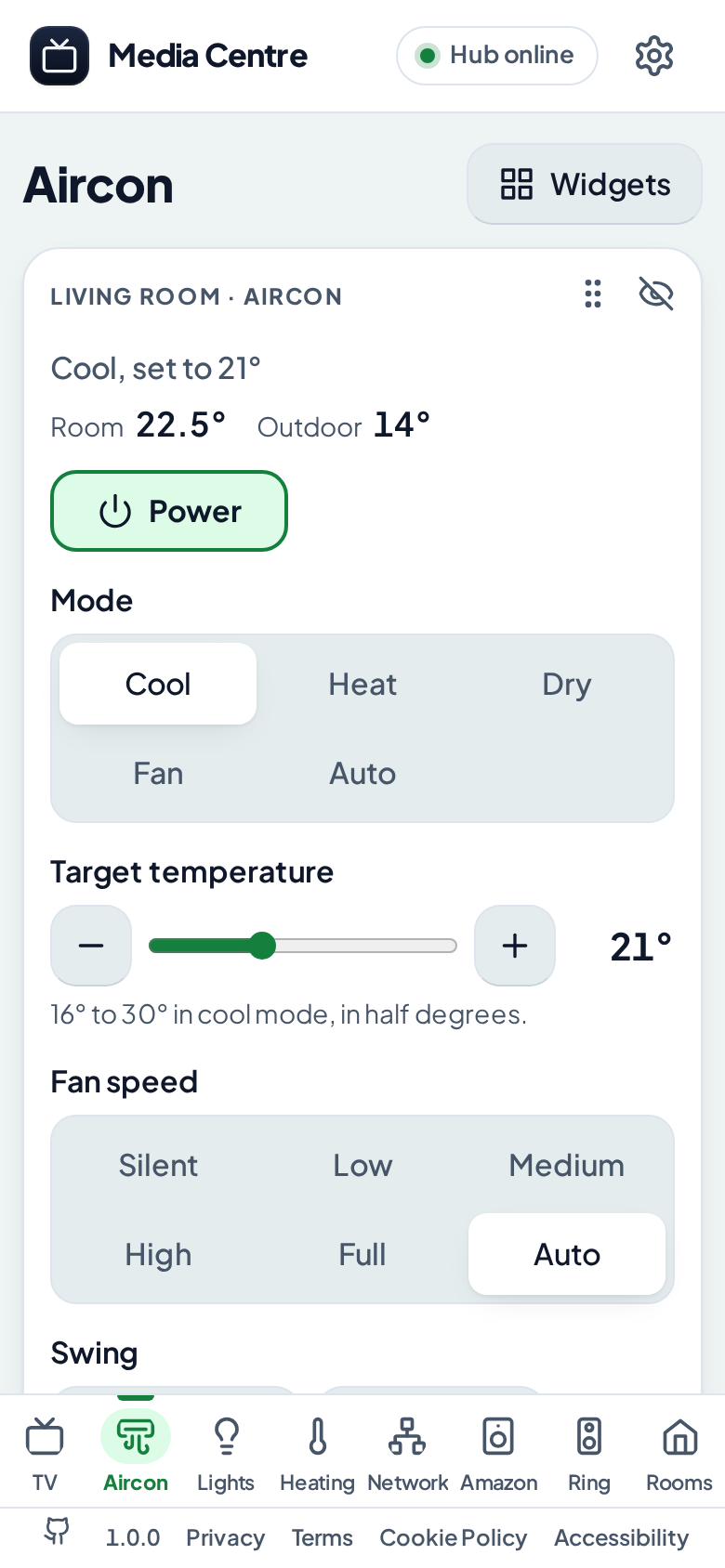
Mode, temperature, fan, swing, Eco, Turbo and Sleep, with the room and outdoor temperatures.
-
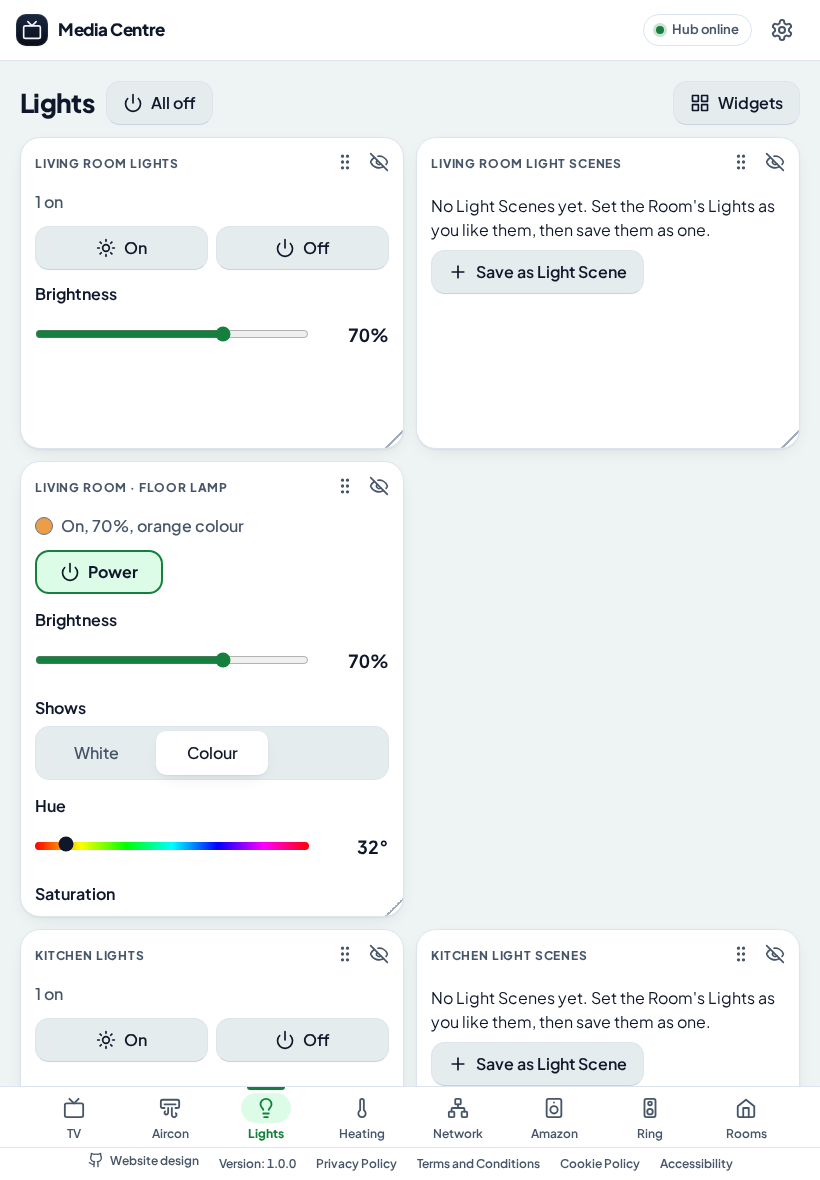
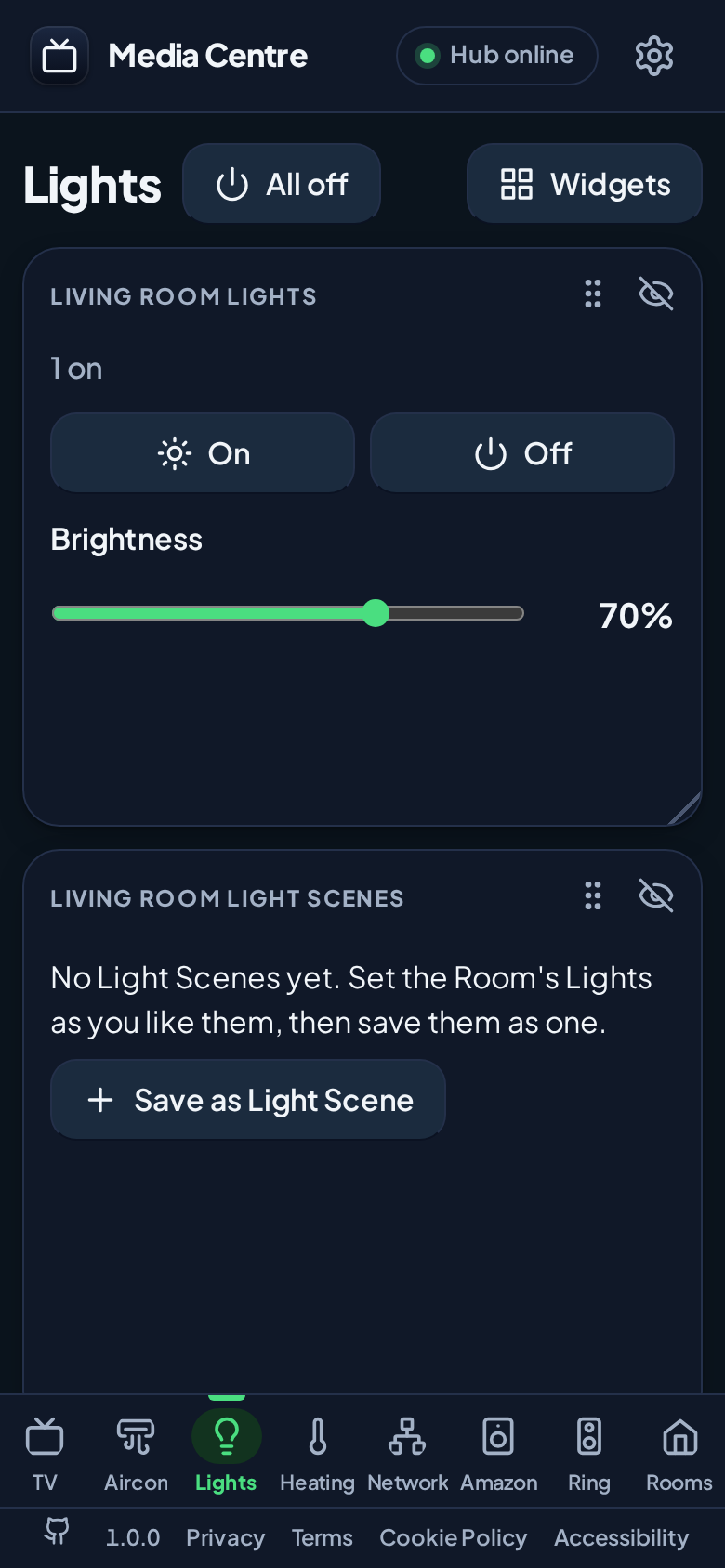
Lepro lights and Light Scenes.
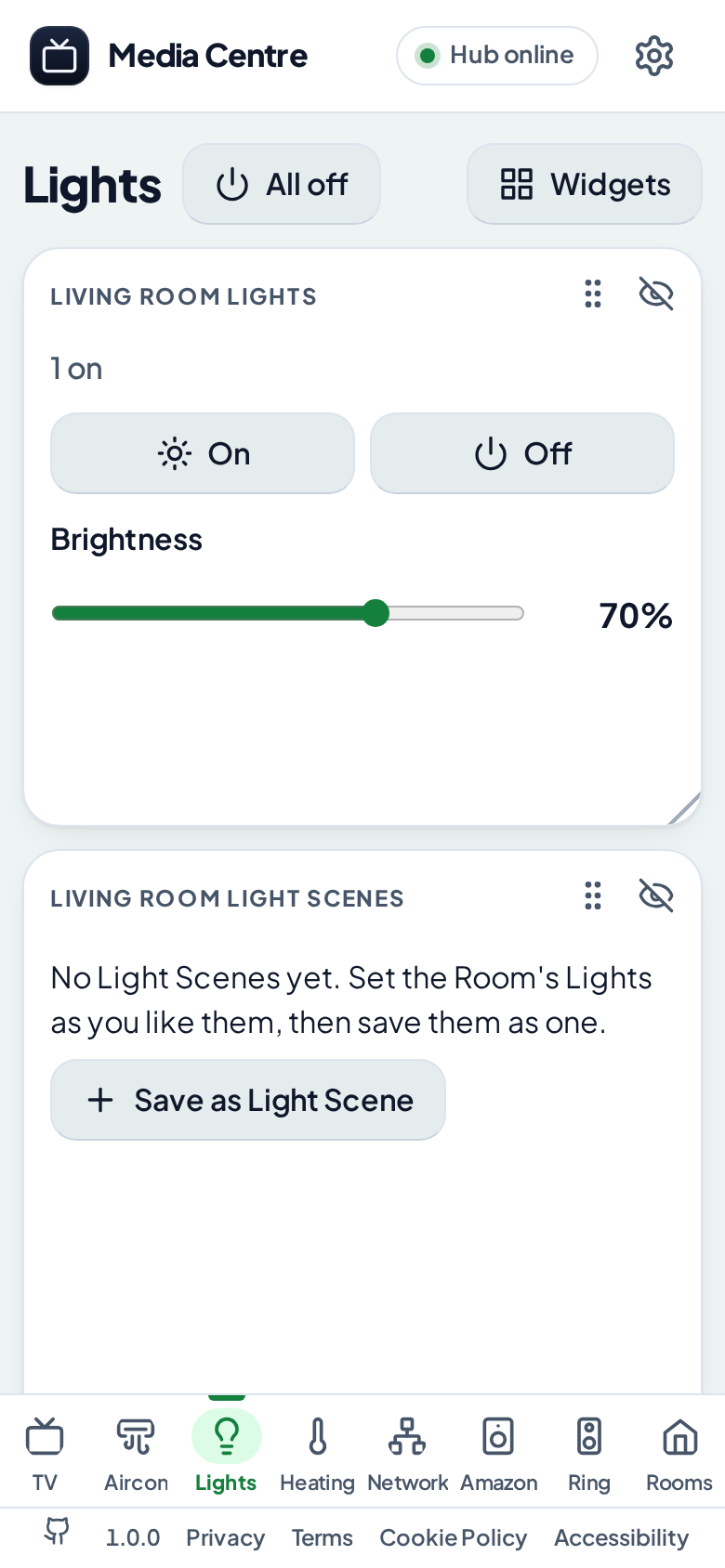
A Room's Lights at once, and Light Scenes to save and recall. Tested against a fake Lepro Light, not yet a real one.
-
Local first.
TVs, air conditioners and lights are controlled over your home network, with no cloud once each is added. Only Hive, Amazon and Ring need theirs.
And the rest of the home
-
Samsung TVs
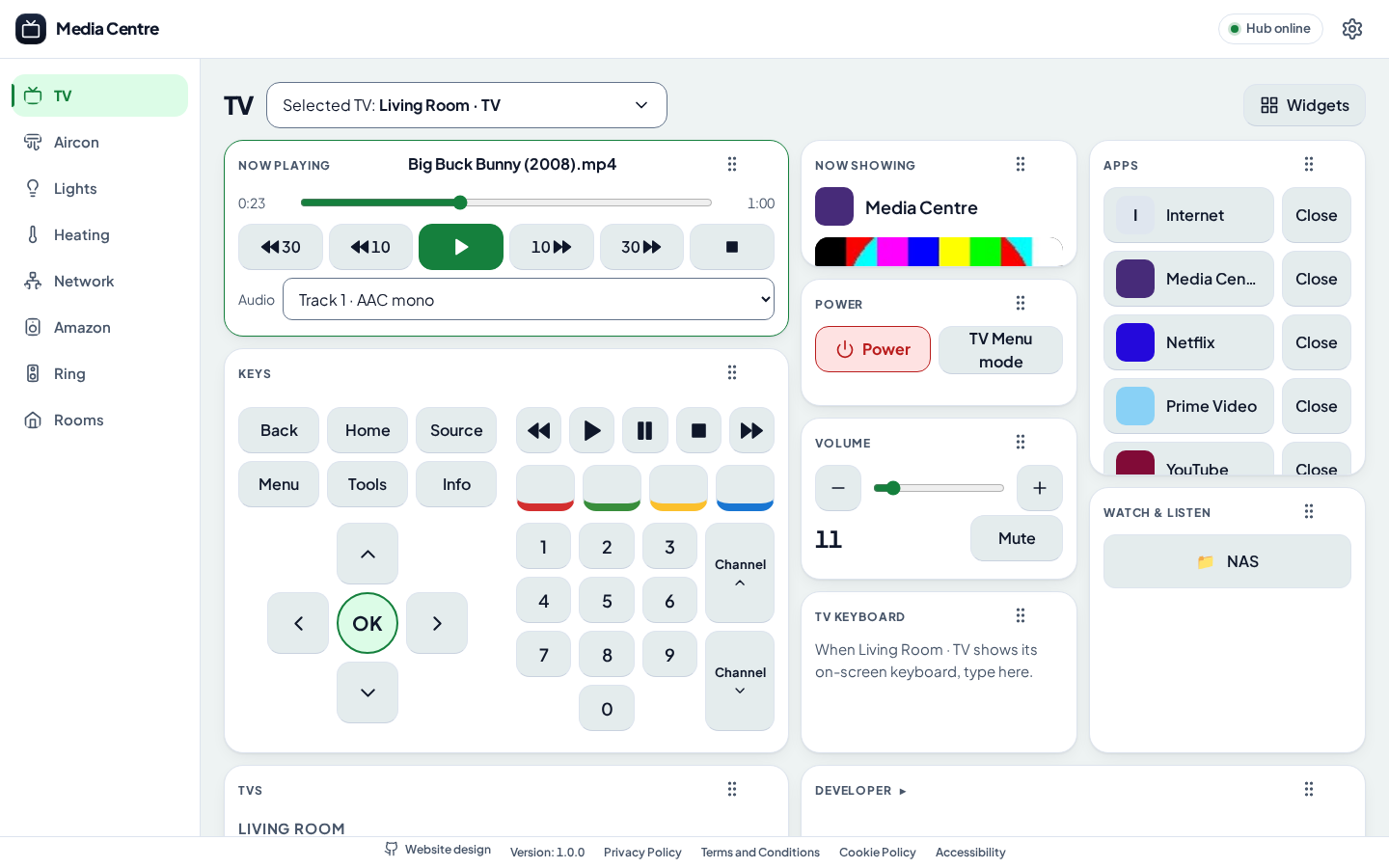
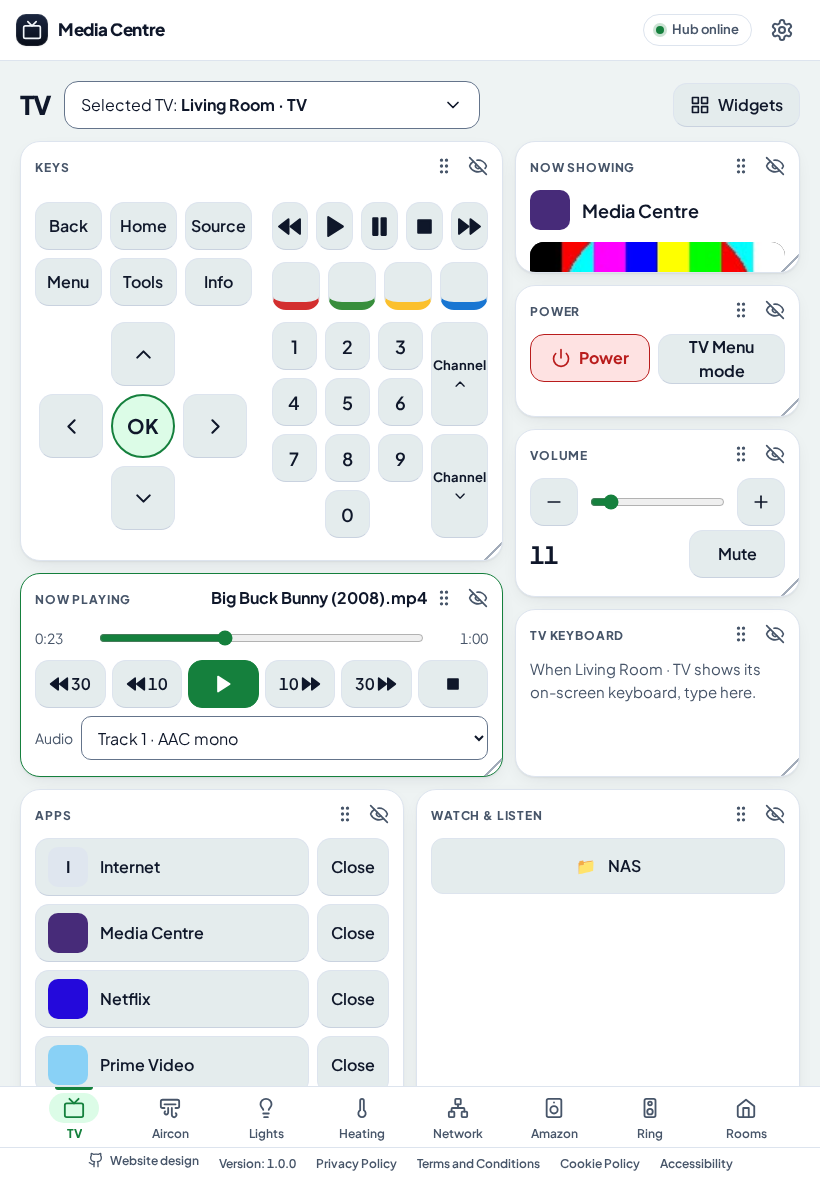
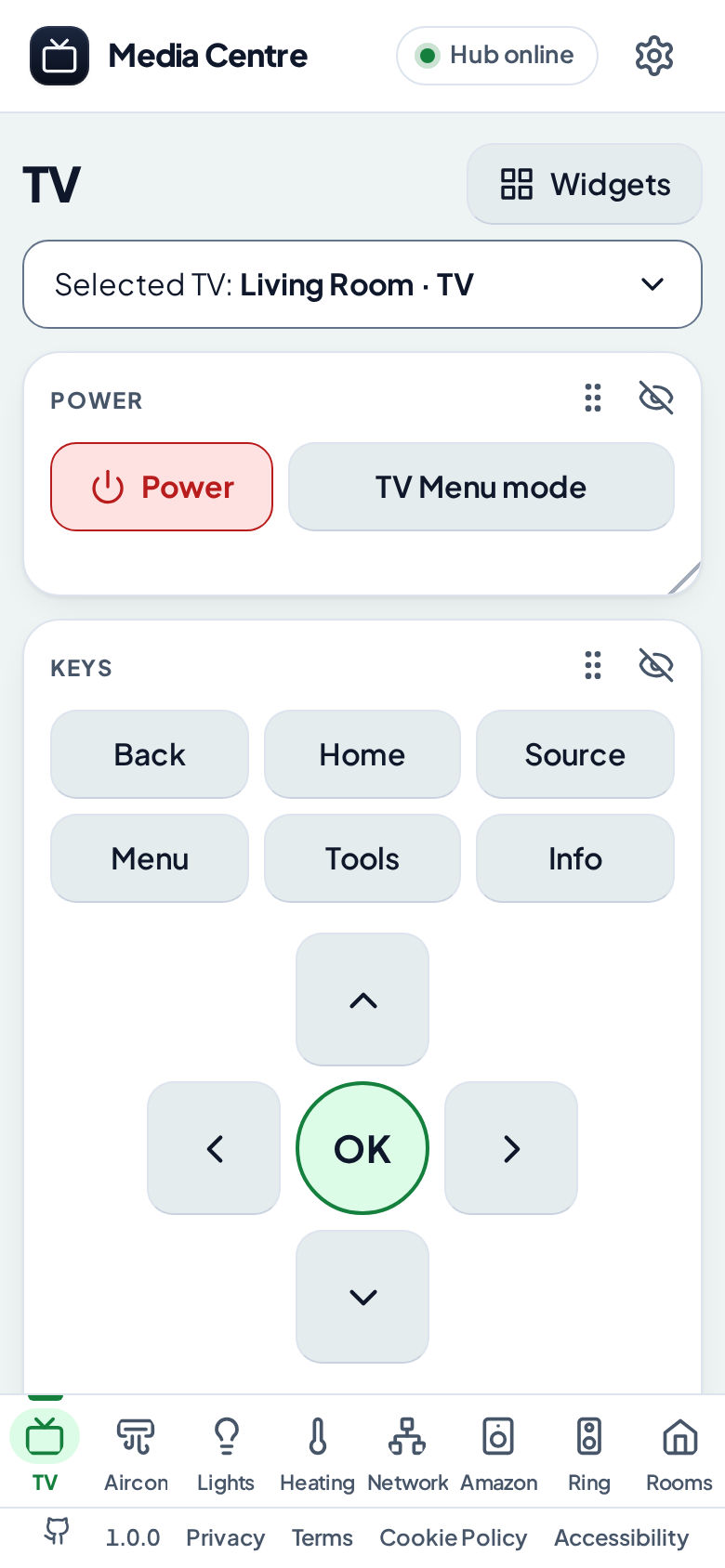
Everything the TV's own remote does, from your phone: Power, the D-pad and keys, a number pad, the coloured and media keys, the volume and mute, typing into the TV's on-screen keyboard, and its apps, to launch or close. TV Menu mode drives the TV's own settings menu, with one-tap shortcuts, and Now Showing says which app is in front.
-
Your films, shows and music on the TV
Browse your PC's or NAS's folders and play on the TV through its own Player: every format ffmpeg can decode, with audio tracks, subtitles (sidecar files too), music with its cover art, a folder played as a Queue with shuffle and repeat, and Resume Positions kept through restarts.
-
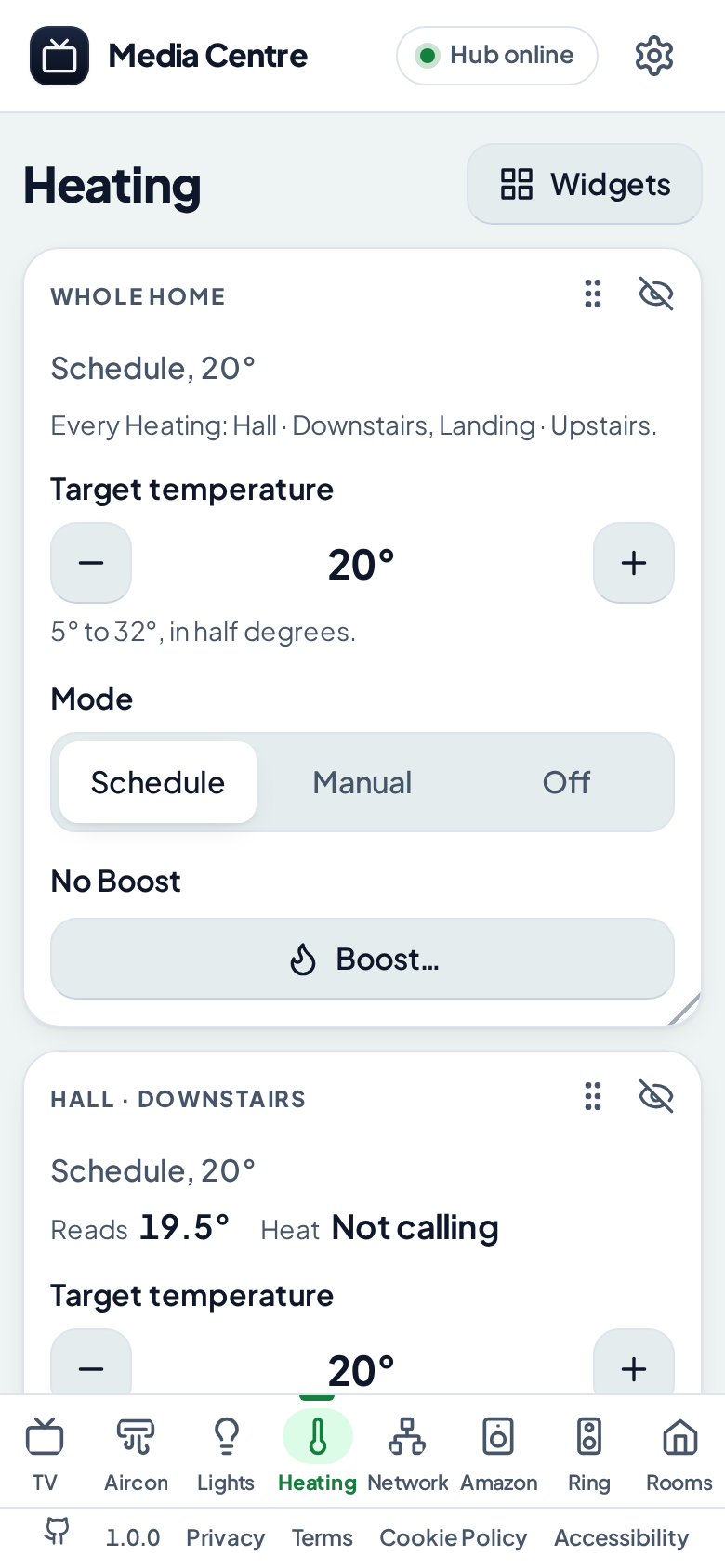
Hive heating and hot water
Each Heating zone and Radiator Valve's target and mode, the Hot Water, a Boost for each, and the Whole home at once, through Hive's cloud. Signing in to Hive is built from the library Home Assistant uses, and not yet tried against Hive itself.
-
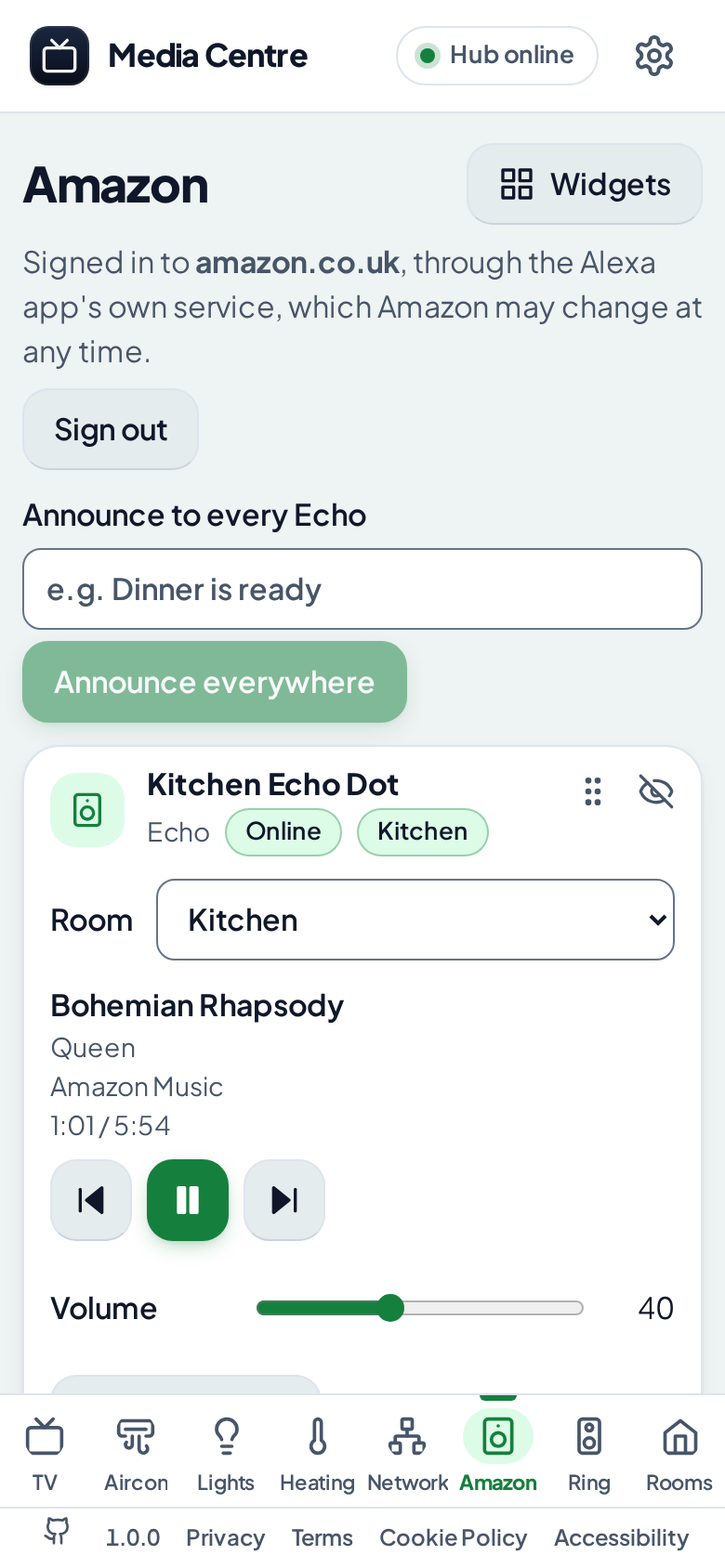
Amazon Echo
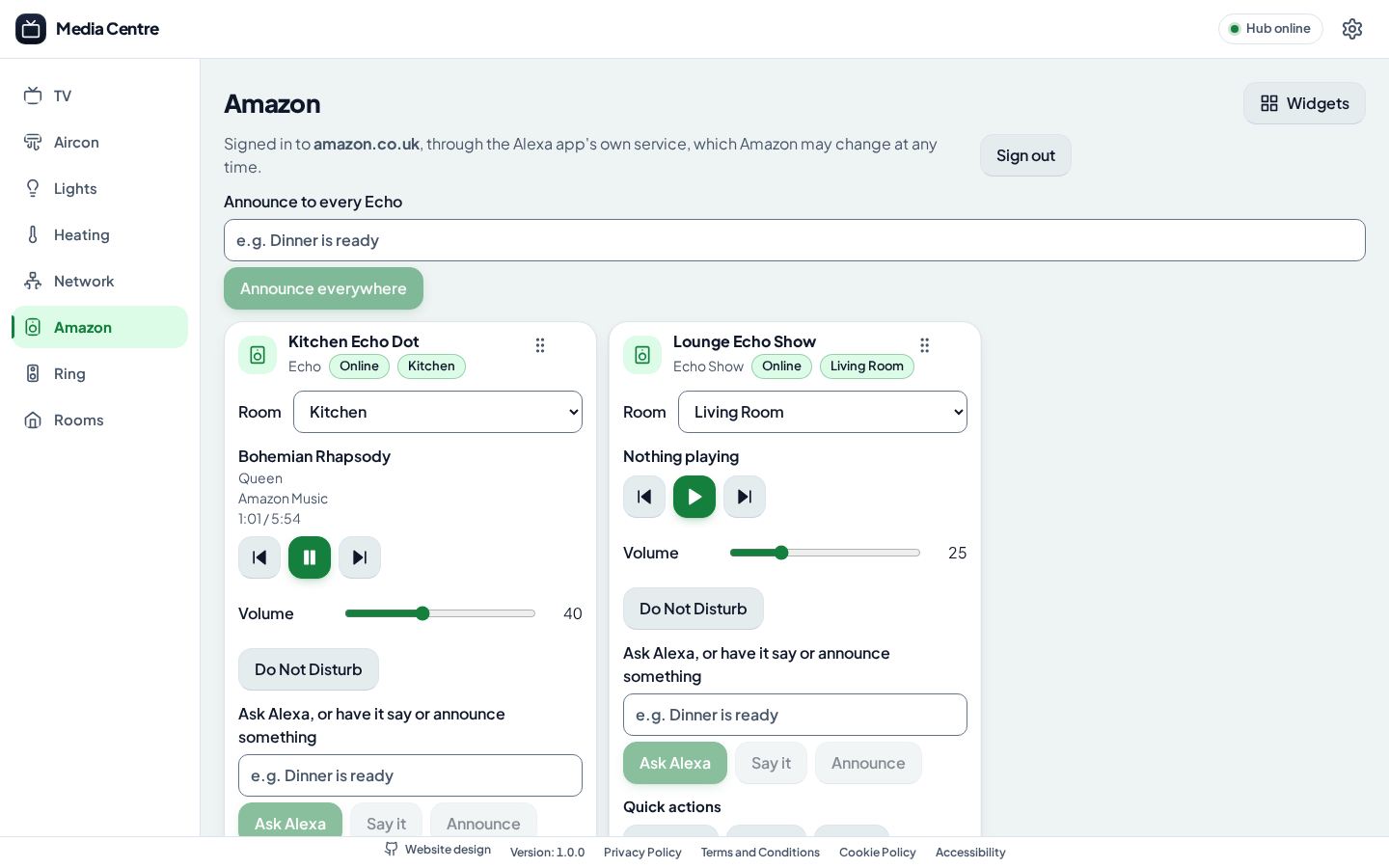
What each Echo is playing, its volume and Do Not Disturb, Ask Alexa, Say it and Announce, routines, music, alarms, timers and reminders, through Amazon's cloud.
-
Ring doorbells, cameras and chimes
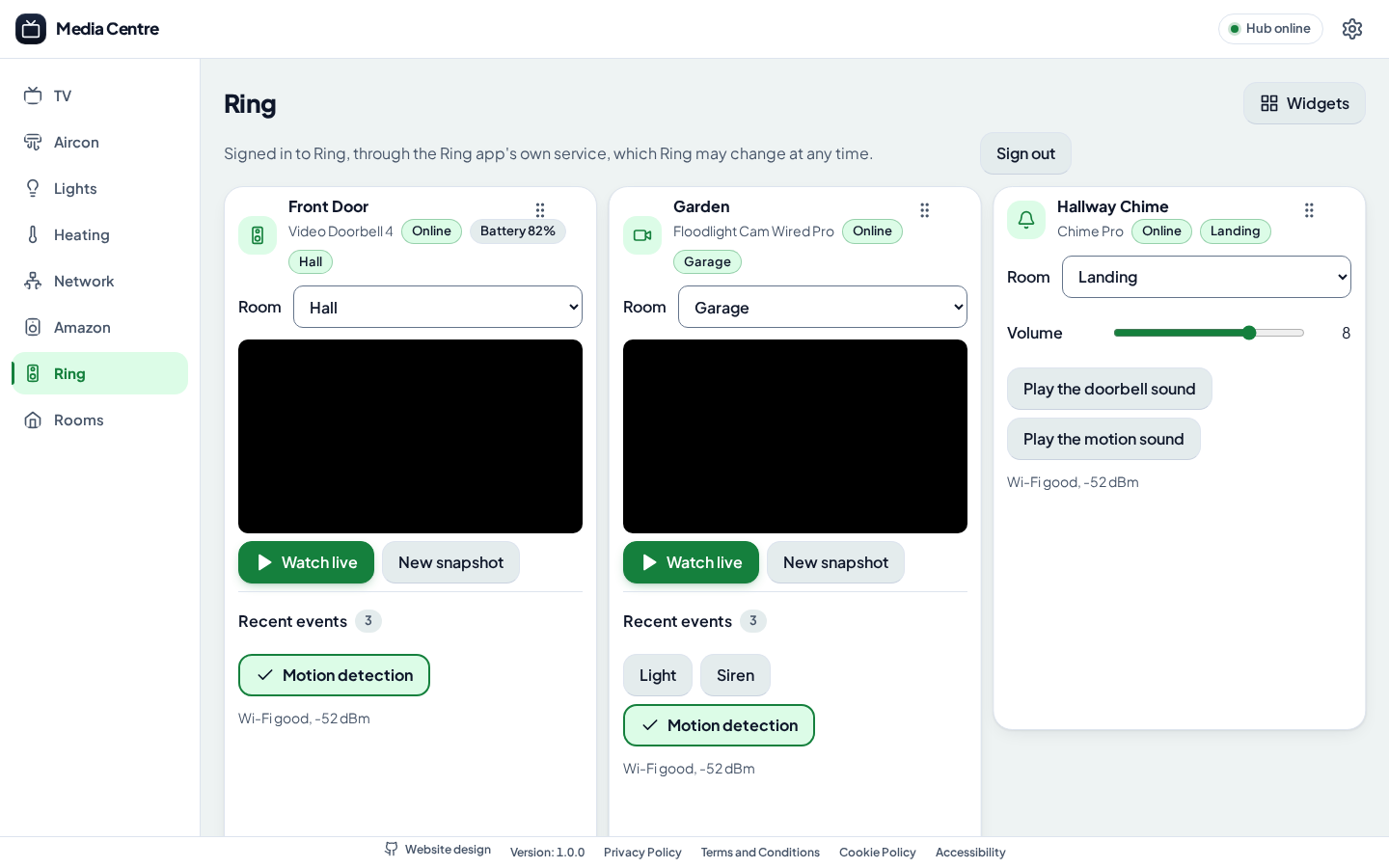
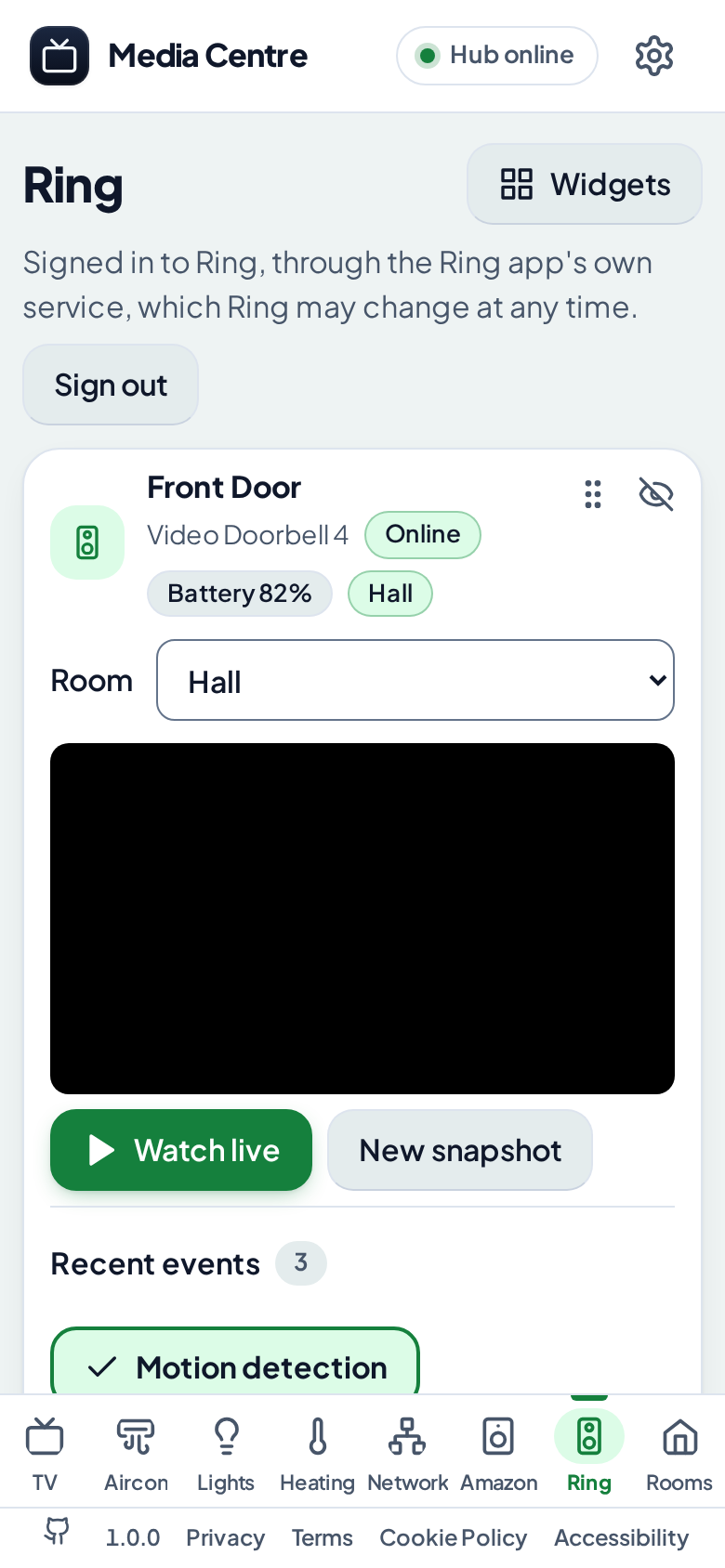
Snapshots, live video, recent events and recordings, the light, siren and motion detection, and a chime's volume and sounds, through Ring's cloud.
-
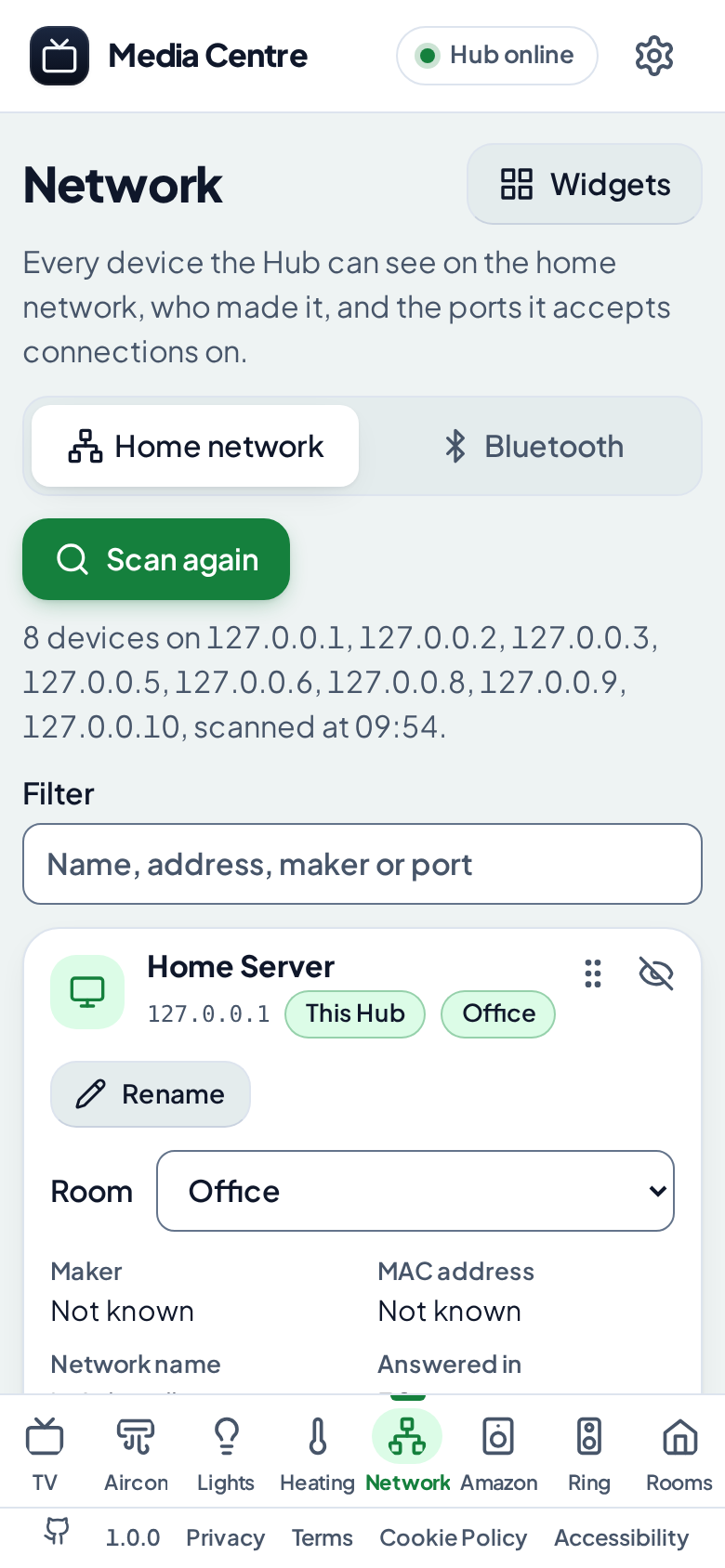
The network and Bluetooth
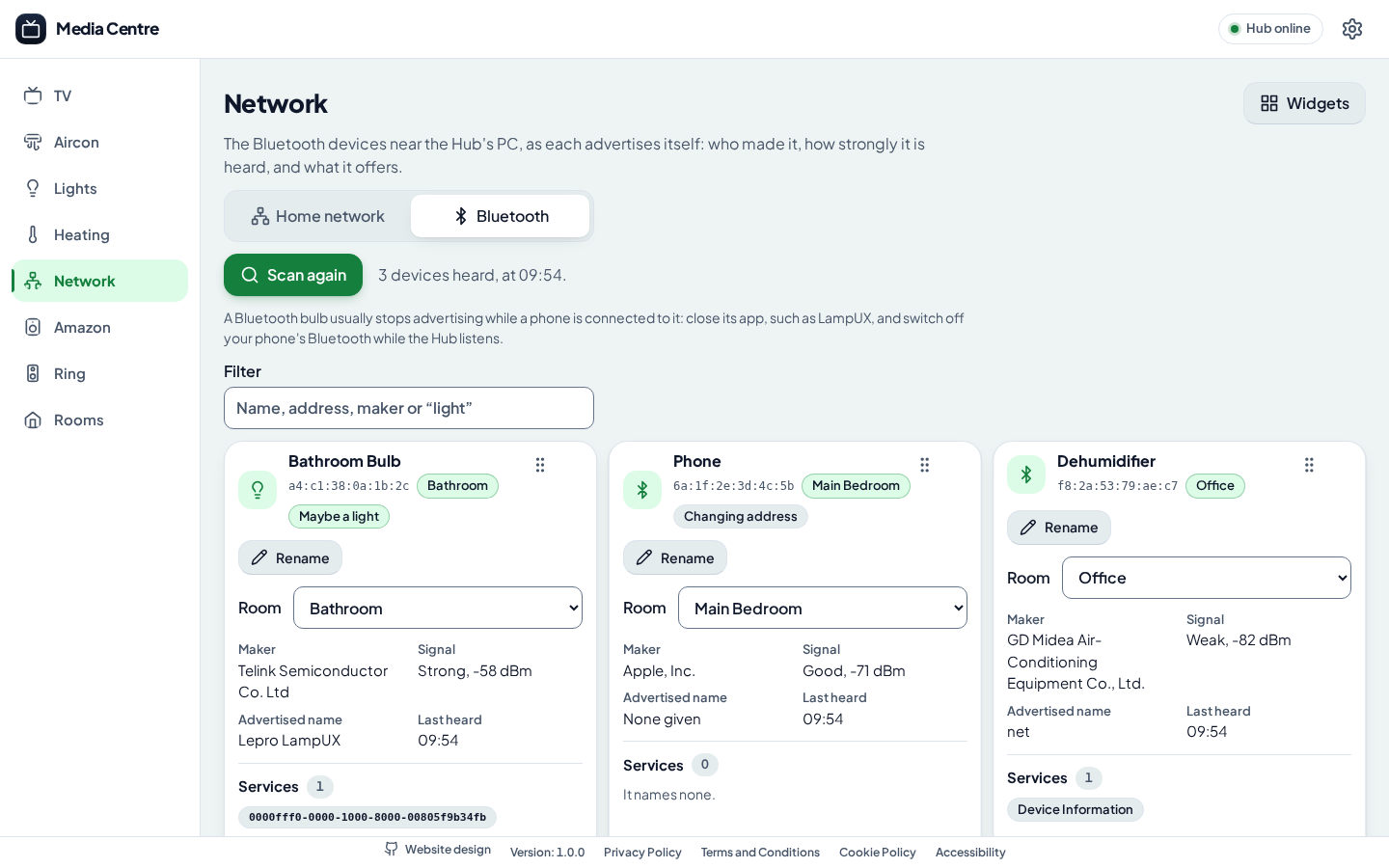
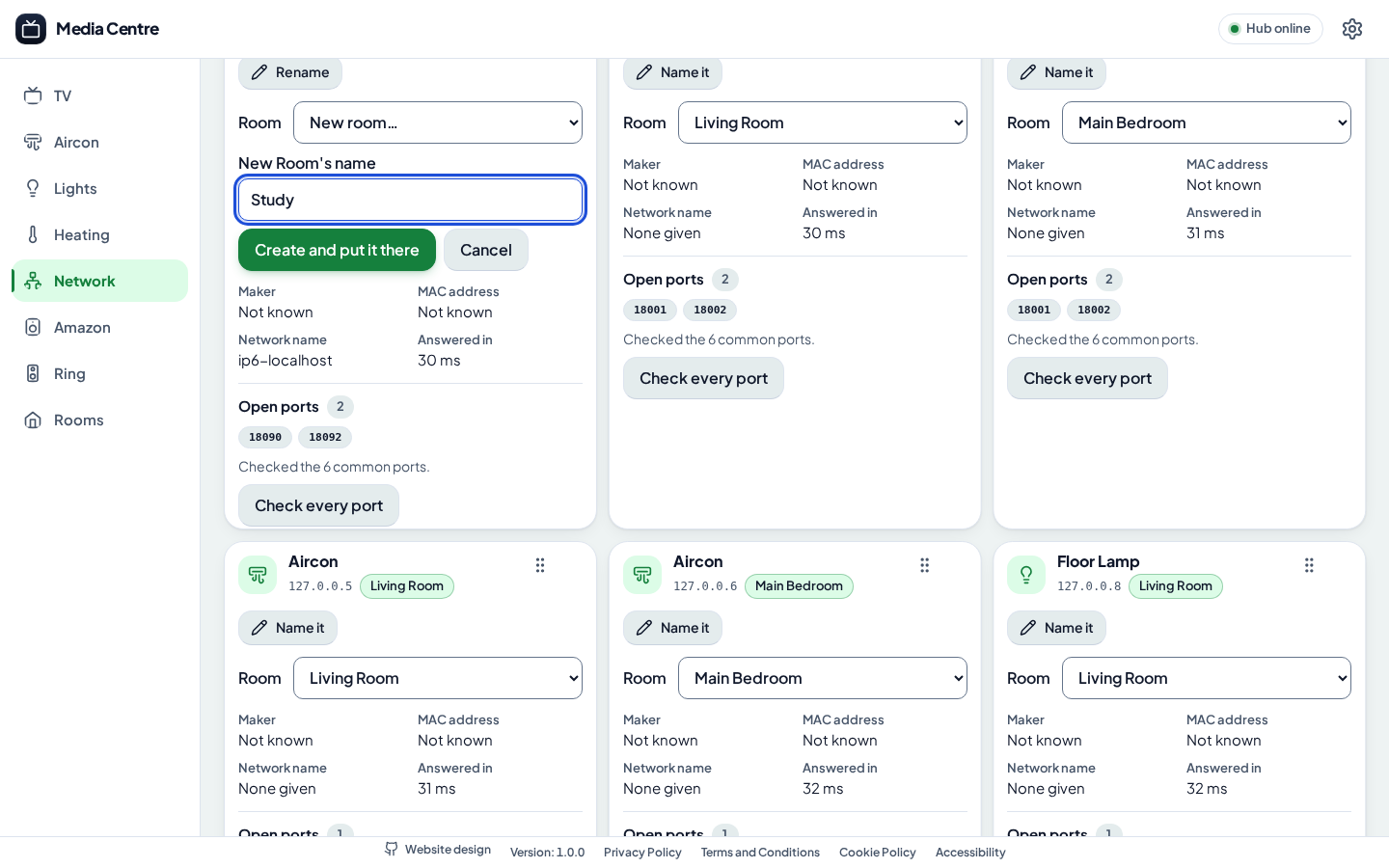
Every device on your home network, who made it and the ports it is open on, and the Bluetooth devices near the Hub, each to name and put in a Room.
Screenshots
See every tab
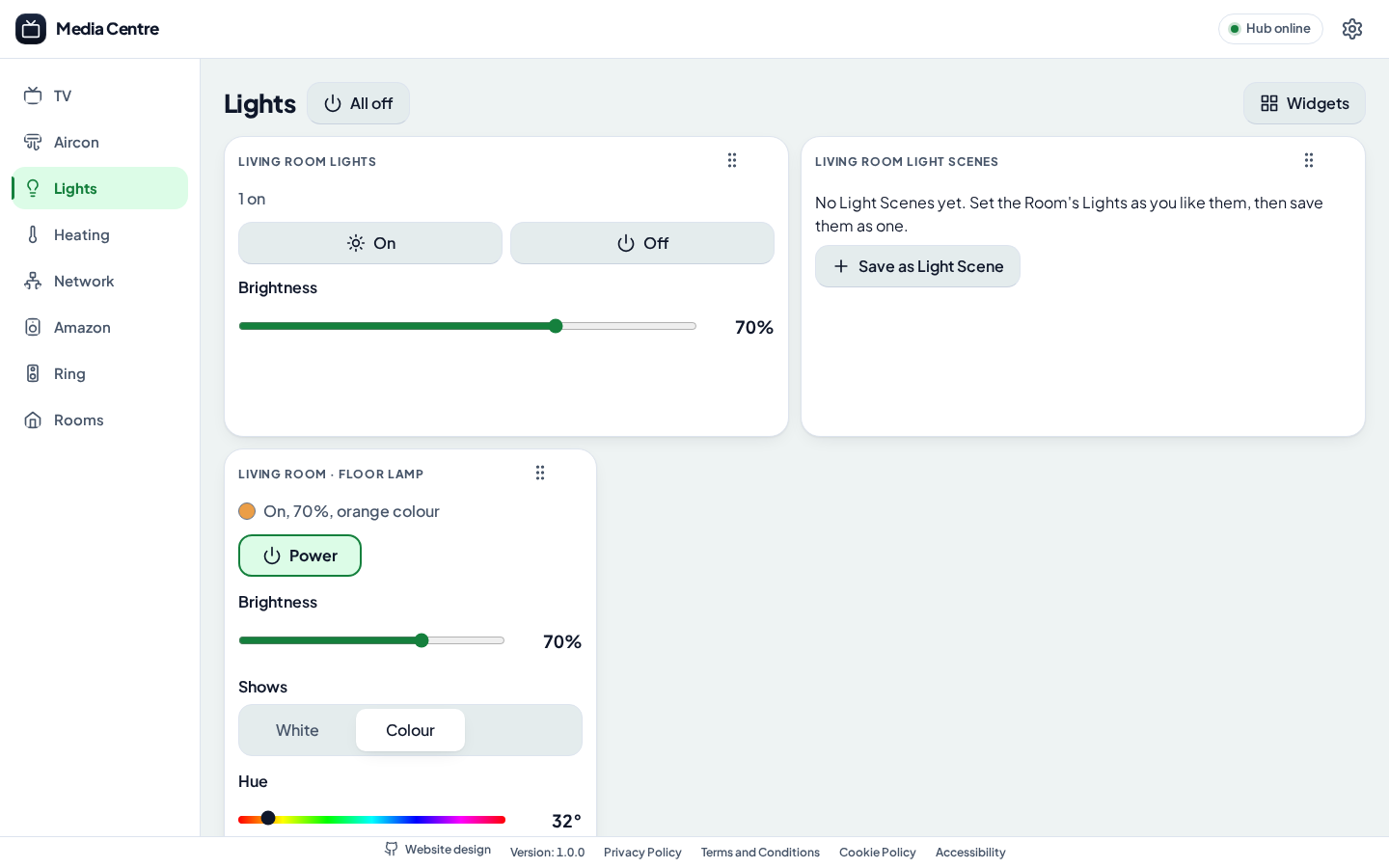
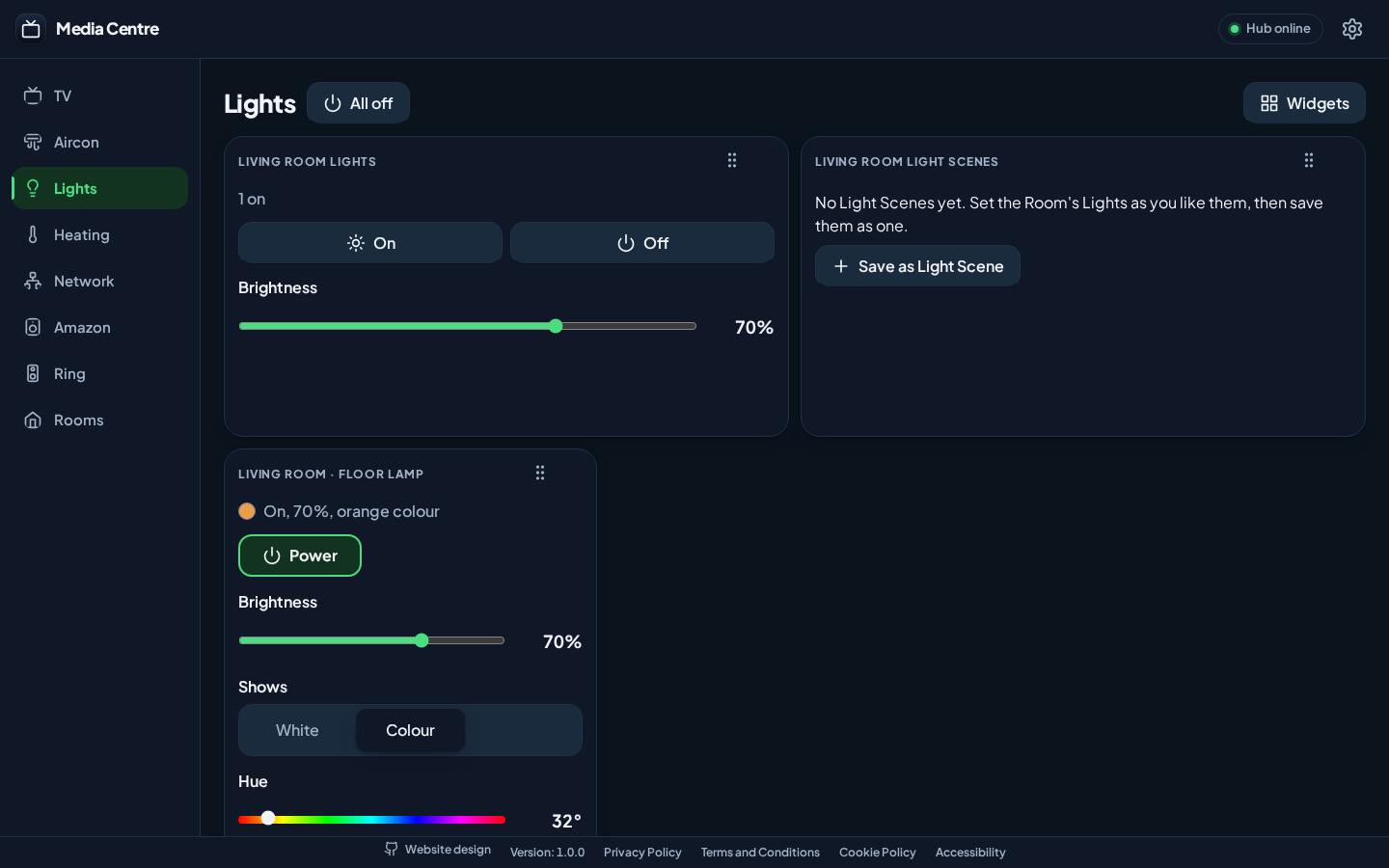
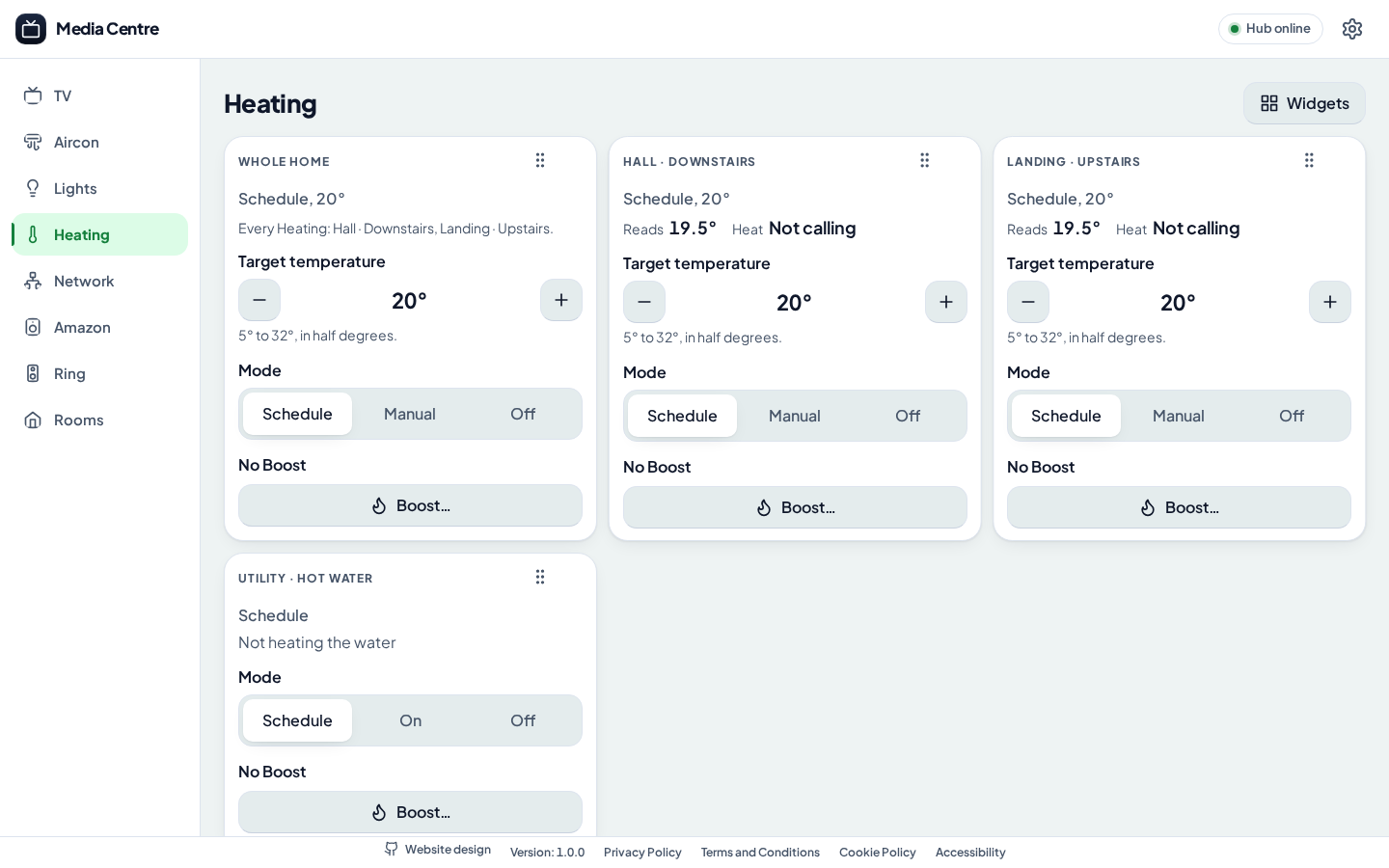
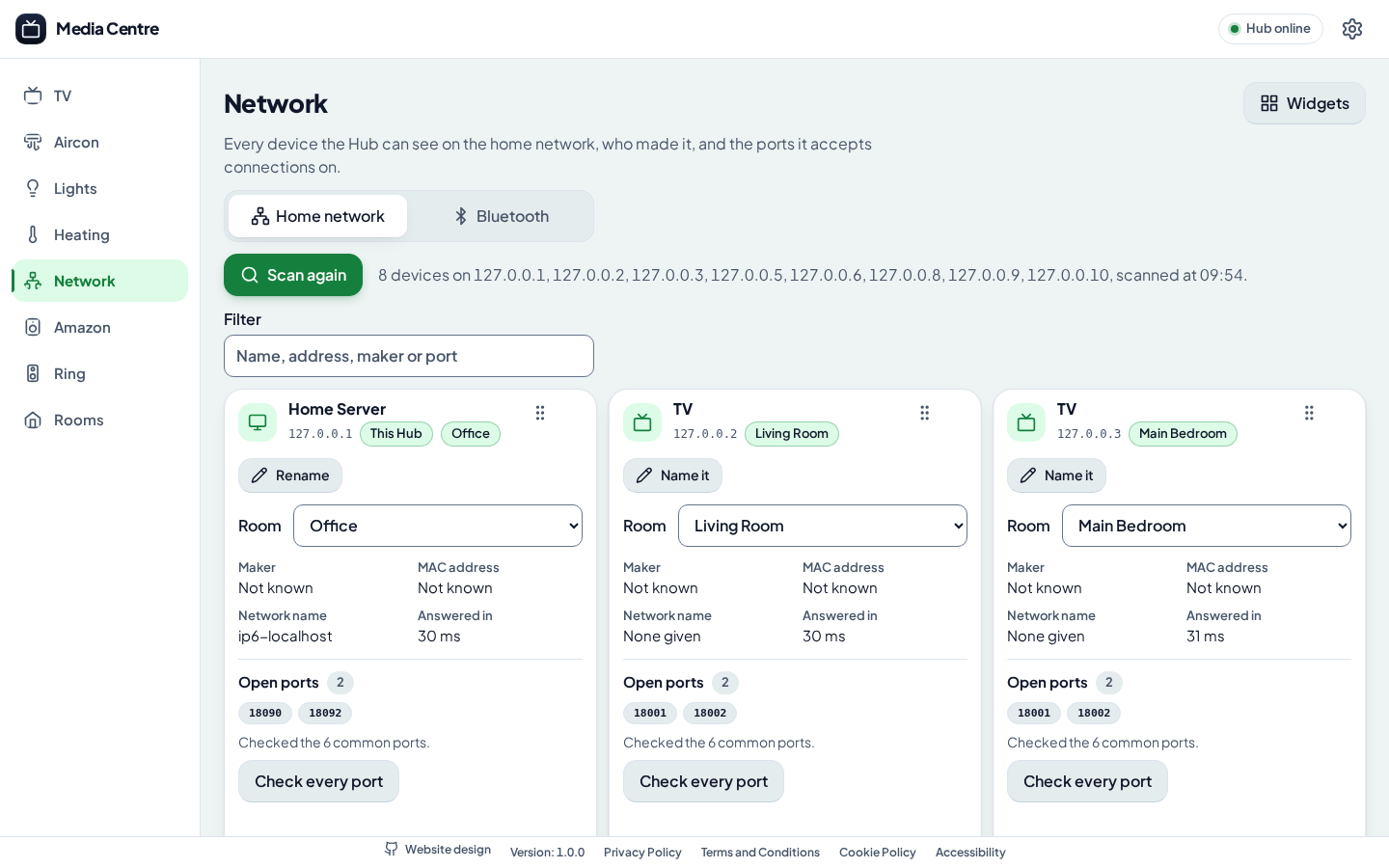
On a computer, a tablet and a phone, taken by the project's own tooling with demo Rooms and its fake Appliances, not a real home. Select a picture to see it full size.
Computer
Tablet
Phone
Before you start
Requirements
One always-on machine for the Hub, on the same network as your TVs, and the Appliances you have. Each kind of Appliance is optional.
-
Docker with host networking on a NAS or mini PC running Linux: the Hub's image has Node, ffmpeg and ffprobe built in. Docker Desktop on Windows or macOS can't put it on your home network, so there use
pnpm start. -
Or, on a PC: Node 26 or later and pnpm 12, with ffmpeg and ffprobe (built with libx264) on the
PATH, and Git. -
The same subnet as your TVs. Finding TVs, switching one on with Wake-on-LAN and reading its volume don't cross a router, so not a separate VLAN or guest Wi-Fi.
-
An x86 (Intel or AMD) machine, ideally. Samsung's tools that install the Player are made for amd64 only: on an ARM NAS, install the Player from a PC with Tizen Studio instead. An Intel mini PC's GPU can do Full Conversion, too.
-
Samsung smart TVs. The Player runs on 2018 and later models, installed in Developer Mode with a Samsung signing certificate, made with Tizen Studio.
-
Your films, shows and music in folders the Hub can read: on its own machine, or mounted from a PC or NAS.
-
For the other tabs: Midea air conditioners (a v3 unit asks for your MSmartHome login once), Lepro lights, and Hive, Amazon or Ring accounts, which need the internet.
-
Any phone, tablet or computer with a browser, on your home network, for the Remote.
Five minutes
Quick start
Start the Hub, then open the Remote in a browser at port 41080. Choose where the Hub runs.
Docker on a NAS
On a Linux NAS or mini PC with Docker, on the same subnet as your TVs. Mount each folder of films, shows or music, read-only, and add it in Settings by its path inside the container.
git clone https://github.com/adrianeyre/media-centre.git
cd media-centre
docker build -t media-centre-hub .
docker run -d --name media-centre-hub --network host \
  -v media-centre-data:/data \
  -v /volume1/video:/media/video:ro \
  --restart unless-stopped media-centre-hub
Then open http://<the NAS's address>:41080 on your phone.
A PC
With Node 26 or later, pnpm 12, and ffmpeg and ffprobe on the PATH. Any folder the Hub can
read can be a Media Source.
git clone https://github.com/adrianeyre/media-centre.git
cd media-centre
pnpm install
pnpm start   # builds the Remote and starts the Hub
Then open http://localhost:41080.
Set up your home
In Settings, add your Rooms, then "Find TVs" and allow the Remote on each TV, add your Media Sources, and find your air conditioners and lights. Sign in to Hive in Settings, and to Amazon and Ring on their tabs.
Install the Player
Put the TV in Developer Mode with the Hub's address, give Settings your Samsung signing certificate, then choose "Install / update Player" in the TV's Developer section.
Go deeper
Documentation
The guides are in the repository on GitHub.
- Getting started What you need, running the Hub on a PC or a NAS, its settings and the network.
- Running the Hub in Docker Host networking, the volume, Media Sources and shares, a GPU, and upgrading.
- The Player and playback Installing the Player, Routes, subtitles, music, Queues and Resume Positions.
- Installing the Player with Tizen Studio Making the signing certificate, and installing the Player by hand.
- Air Conditioners The Midea Driver, adding units in Settings, and the Aircon tab.
- Lights The Lepro Driver, adding Lights, Light Scenes and a TV's film Light Scene.
- Heating The Hive Driver, signing in to Hive, and the Heating tab.
- Rooms and the floor plan The Rooms tab, naming places, and drawing the plan on your own image.
- The Network tab Every device on the network and Bluetooth, its maker, ports and name.
- The Amazon tab Signing in to Amazon, and everything each Echo can do.
- The Ring tab Signing in to Ring, snapshots, live video, events and recordings.
- Versions and releases Update notices, the Changelog and how releases are made.
Also the README, the glossary, the requirements, the decision records and the changelog.
Licence
Media Centre is free and open source under the
ISC licence, as its
package.json declares: use it, change it
and share it, keeping the copyright notice. It comes with no warranty.
Its typeface, Plus Jakarta Sans, is under the SIL Open Font Licence, as is this website's copy of it. Samsung, Midea, Lepro, Hive, Amazon, Echo, Alexa and Ring are their owners' trademarks; Media Centre isn't made or endorsed by any of them.
Privacy Policy
First edition, effective 26 October 2026.
This website
This policy is about this website, https://media-centre.adrianeyre.co.uk/, a single static page about Media Centre, published from Media Centre's repository and hosted by GitHub Pages. It has no sign-in, no forms and no comments, and asks you for nothing.
What this website collects
Nothing. There is no analytics, no tracking and no advertising. The page sets no cookies and keeps nothing in your browser's storage, and everything it shows (its text, font, icons and screenshots) comes from this site itself, so viewing it sends nothing to anyone else.
Who else sees your visit
- GitHub hosts this website. Like any web host, it receives each visitor's IP address and the request their browser makes, and may keep them in its logs for security and to keep the service running, as the GitHub General Privacy Statement sets out.
- Links to GitHub and other sites leave this website: what those sites collect is in their own privacy policies.
The Media Centre app
The app runs on your own Hub, at home, so what it holds stays with whoever runs it. The Remote has its own privacy policy, in its footer, which lists every service outside the home it can talk to, when, and what it sends.
Your rights
This website holds nothing about you. For what GitHub holds, see its privacy statement; for a question about this page, open an issue on GitHub.
Changes
This policy may change with the website; the date above says when it last did.
Terms and Conditions
First edition, effective 26 October 2026.
Using this website
This website gives information about Media Centre: what it is, what it needs and how to start it. By using it, you agree to these terms, and to GitHub's own terms for the GitHub Pages it is hosted on.
The software
Media Centre is licensed under the ISC licence, as the Licence section above says. The app has its own terms, in the Remote's footer, which apply when you run it.
Your Appliances and accounts
The setup this page describes connects your own TVs and Appliances, and, if you choose, your Midea, Hive, Amazon and Ring accounts, whose own terms still apply. Amazon's and Ring's terms may not allow their apps' services to be used this way: it is your account, and your decision.
Names and trademarks
Samsung, Midea, Lepro, Hive, Amazon, Echo, Alexa, Ring and the other products named here belong to their owners, and are named only to say what Media Centre works with.
No warranty
This website and its instructions are provided as they are, without warranty of any kind. Its authors are not liable for any loss arising from their use, to the extent the law allows.
Law
These terms are governed by the law of England and Wales, whose courts settle any dispute about them. If you live elsewhere in the United Kingdom or the European Union, you also keep the protection of your own country's mandatory laws.
Changes and contact
These terms may change with the website; the date above says when they last did. For a question, open an issue on GitHub.
Cookie Policy
First edition, effective 26 October 2026.
No cookies
This website sets no cookies, and keeps nothing in your browser's local storage, session storage or any other storage. There is nothing to accept, and no banner asks you to.
What is stored
| Name | Type | Purpose | How long |
|---|---|---|---|
| None | |||
The Media Centre app
The Remote you run at home sets no cookies either, and remembers its settings, such as its theme and widget layouts, in your browser; its own cookie policy, in its footer, lists each.
Other sites
Links to GitHub and to other sites leave this website, and those sites may set cookies of their own under their own policies.
Accessibility
First edition, effective 26 October 2026.
Conformance status: this website is built to meet the Web Content Accessibility Guidelines (WCAG) 2.2 at Level AA.
What we have done
- Keyboard access: every link, button, tab and dialog works with a keyboard alone, with a clear focus outline the sticky header never hides. A "Skip to content" link leads the page.
- Screen readers: one main heading, headings in order and labelled landmarks; every control has a name, every screenshot a description, and copying a command is announced.
- Colour and contrast: text has at least 4.5:1 contrast with its background, and controls, icons and focus outlines at least 3:1, in light and dark mode, which follow your device. Windows Contrast Themes are respected.
- Motion: transitions are short, and smooth scrolling and animation are switched off when your device asks for reduced motion. The illustrations of the app play only while they are on screen, show a still frame instead when your device asks for reduced motion, and the one that repeats has a button under it to pause it.
- Zoom and reflow: the page reflows down to 320 pixels wide and at 400% zoom without scrolling sideways.
- Target sizes: every control is at least 24 by 24 pixels, and buttons at least 44 pixels tall on touch screens.
- Dialogs: the screenshot viewer and these policies move focus in, keep it there, close on Escape and hand focus back to whatever opened them.
- Without JavaScript: every part of the page, these policies included, can still be read and reached.
Known limitations
- Long commands scroll sideways inside their own frame on narrow screens; the frame takes focus, so the arrow keys scroll it.
- The screenshots and illustrations are pictures of the app; their descriptions say what each shows, not every word in it. The app itself is the accessible version.
The Media Centre app
The Remote has its own accessibility statement, in its footer.
Feedback
If something is hard to use, please open an issue on GitHub saying what you were trying to do, and with which browser and assistive technology.